
Select a useful section
Set the beginning and end of the clip. Remove a shaky opening or unrelated ending without losing the explanation or hiding relevant context. Each source video keeps its own editing decisions.
Trim and crop short field clips, review subtitles and audio, and prepare company-branded video files with an intentional office workflow.
Capture in the field. Review in the office. Export for your own publishing workflow.
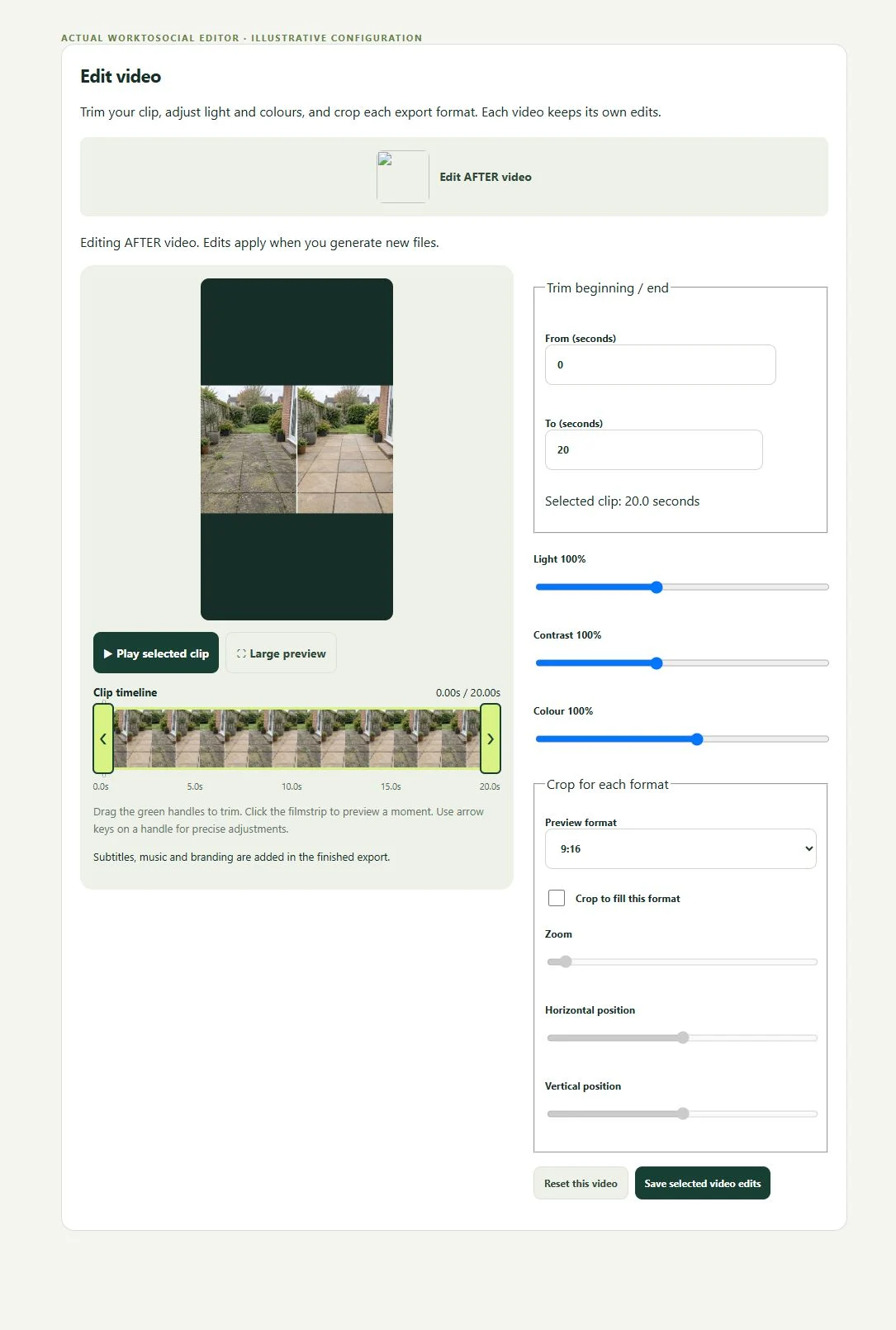
Set the beginning and end of the clip. Remove a shaky opening or unrelated ending without losing the explanation or hiding relevant context. Each source video keeps its own editing decisions.
The editor offers 1:1, 4:5, 9:16 and 16:9 preview formats, crop-to-fill, zoom and position. Inspect the subject in each selected format; do not assume a square crop will work in portrait.
Prepare subtitles from speech or write them manually. Review wording and timing against the actual footage, especially technical descriptions, background noise and private names.
Choose music, set its volume and decide whether to keep original sound. Listen to the full mix so speech remains understandable where it matters.
Apply the relevant company treatment, intro, outro and CTA. Generate files for the selected formats and inspect the complete preview. Direct social publishing is not currently active.
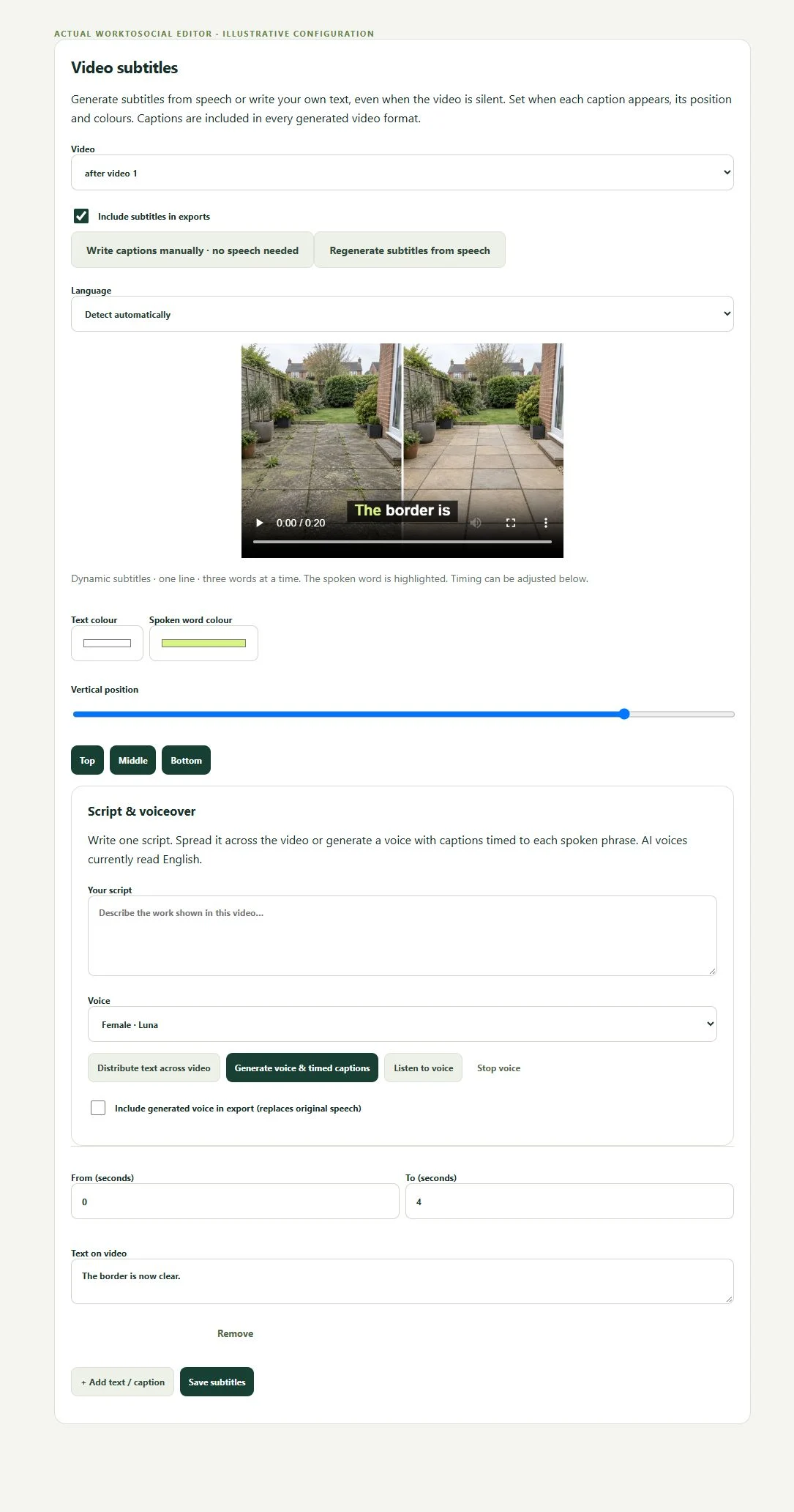
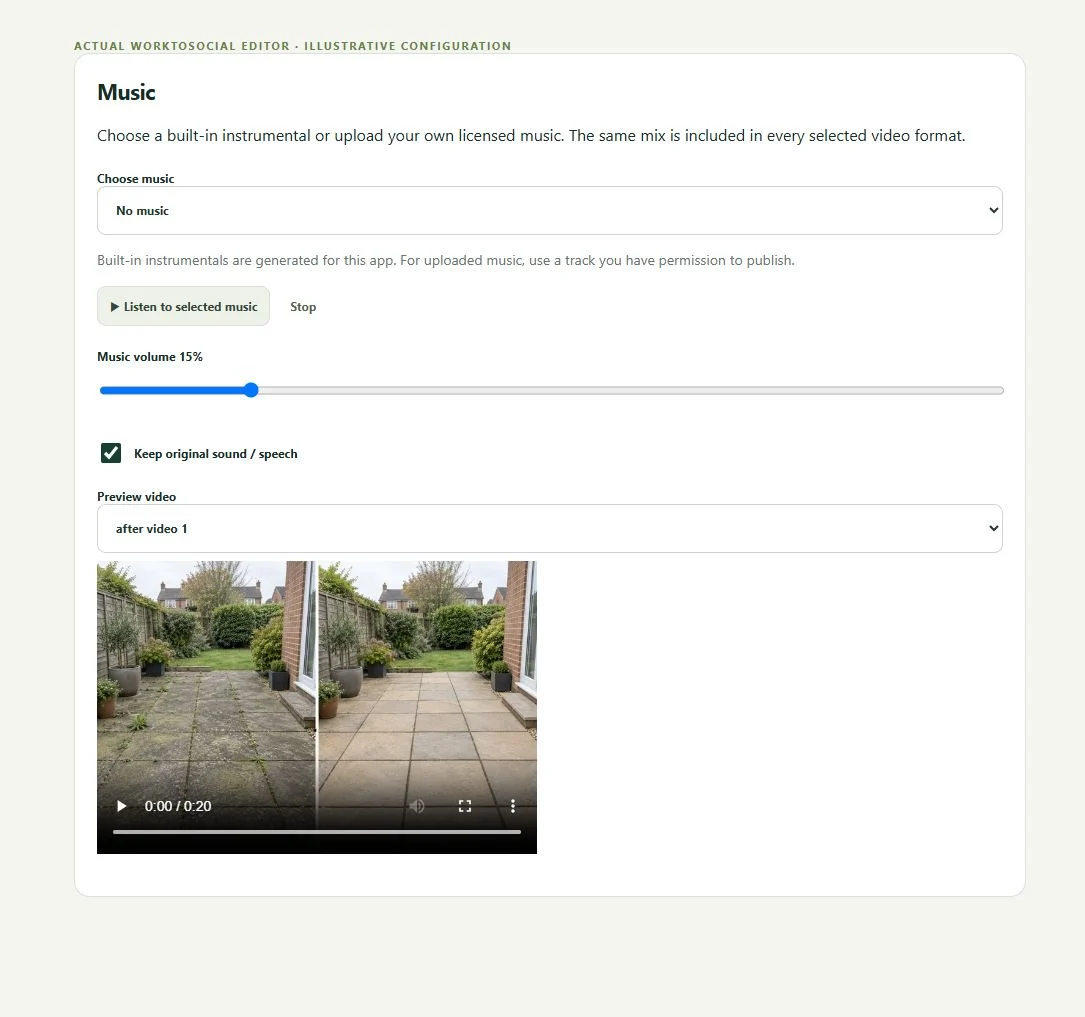
Select the correct company service, capture useful material and submit with a short explanation. Keep uploading until the handover completes.
See the Worker App →Read the job context, inspect the sources, make editing decisions and review the selected final files. Public use remains a deliberate business decision.
Explore the Office Dashboard →Review speech text and timing.
Explore subtitles →Balance music with original speech.
Explore music →Give the finished clip the company’s identity.
Explore video branding →Check the opening, closing card and CTA.
Explore intros and outros →Turn real jobs into consistent, branded content your office can review and use.
Discuss your team’s workflow with us.