
Walk through the real WorkToSocial workflow
See the actual Worker App, Office Dashboard, photo layers, subtitle and music controls with illustrative product records.
Capture in the field. Review in the office. Export for your own publishing workflow.
A connected handover
- 01Worker
- 02Capture
- 03Office
- 04Edit
- 05Brand
- 06Approve
- 07Export
Open the mobile job form
The actual Worker App begins with Service, Area, Booking / order number and Notes. The company’s configured services provide the options. This sample screen shows the real controls without a customer account.
Explore this part of the workflow →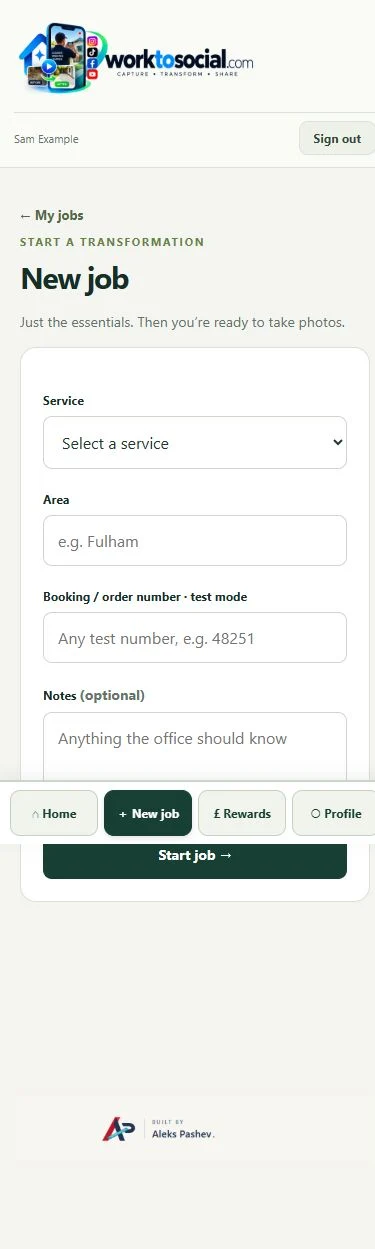
Inspect the capture controls
The real capture screen separates BEFORE, AFTER and SUBMIT, with Take photos, Record video and Photo library controls. Workers should choose useful source material and check upload completion.
Explore this part of the workflow →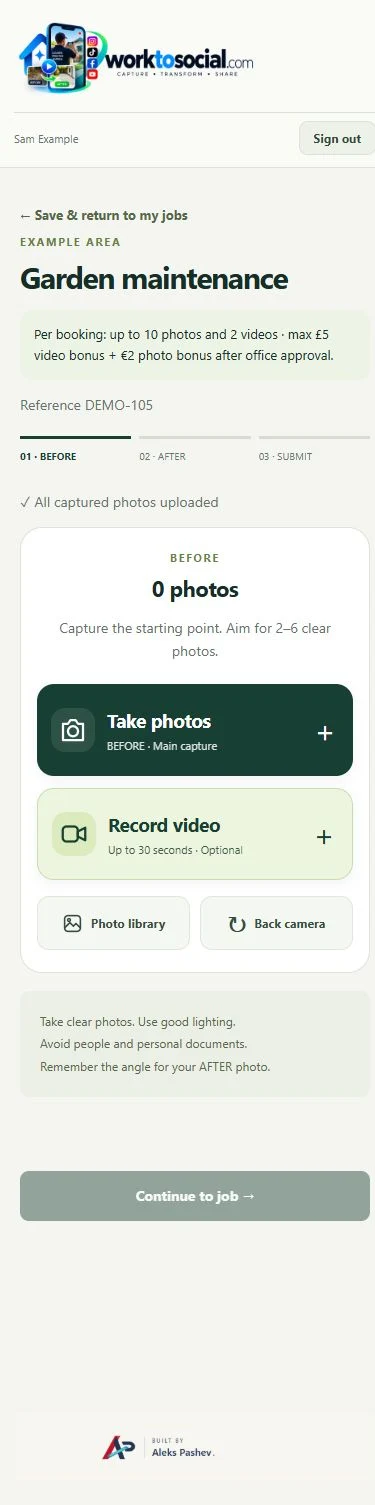
Find the submission in Office
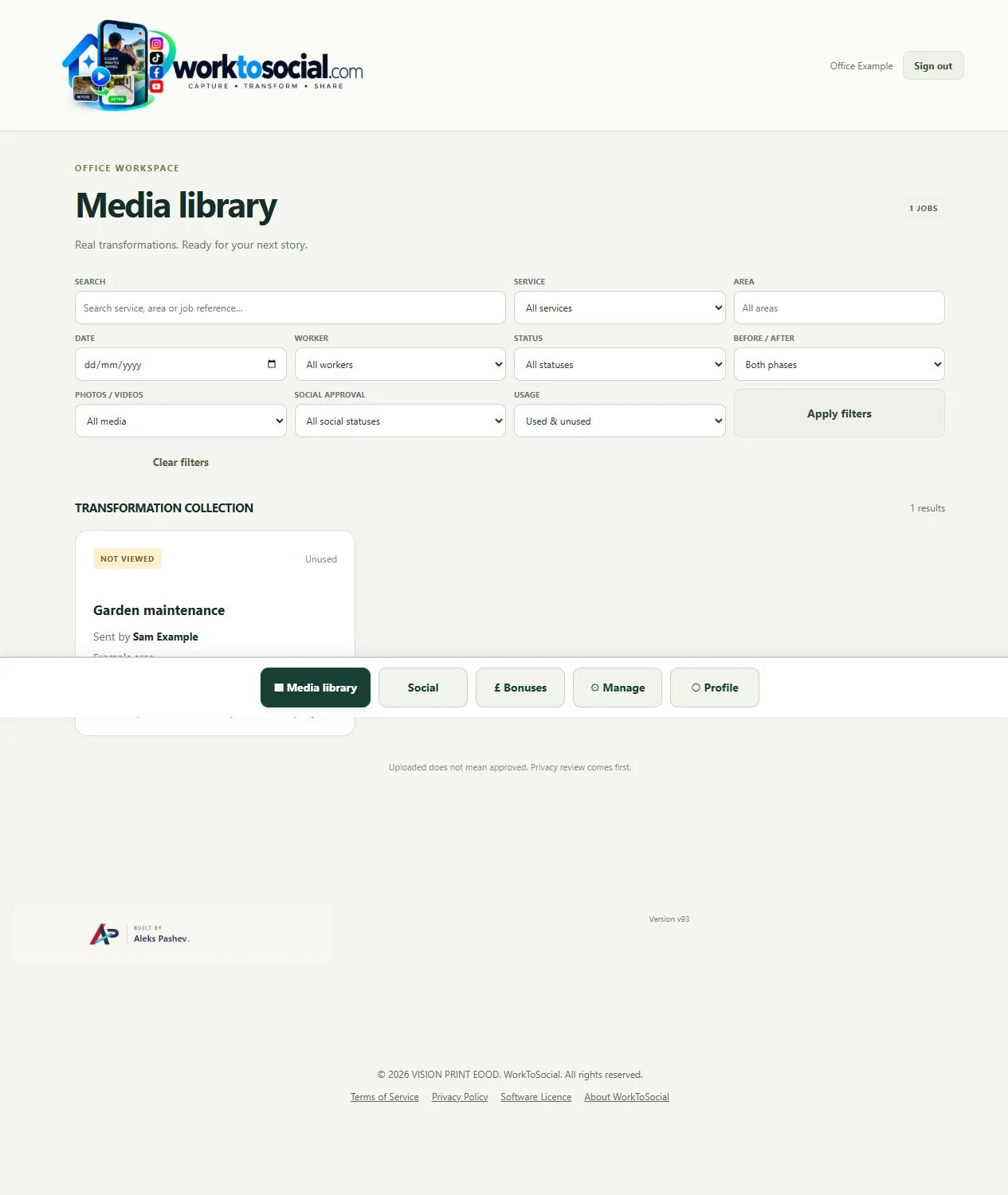
The actual library provides search plus service, area, date, worker, status, phase, media, social approval and usage filters. Open a job to see more than its thumbnail.
Explore this part of the workflow →Choose how to present a photo
The actual photo-layer editor shows movable layers and text controls on an illustrative source. Add a label only when it helps explain the job; original photos remain unchanged.
Explore this part of the workflow →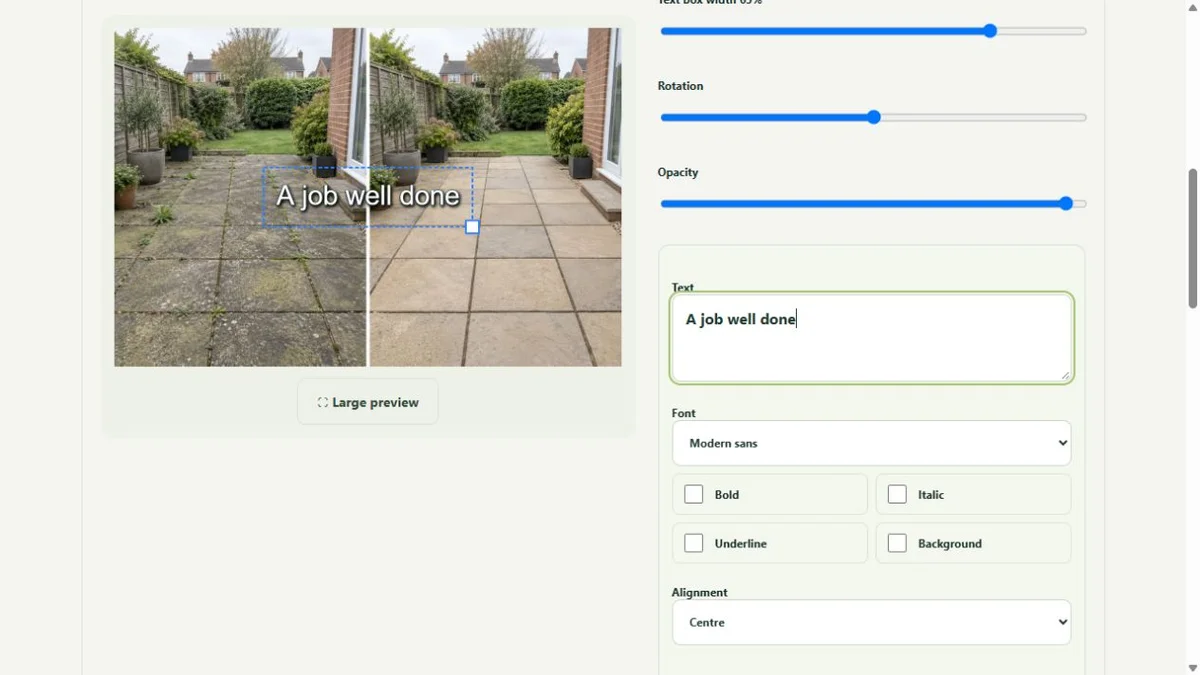
Check the video controls
Trim start and end, Light, Contrast, Colour and crop position are available in the actual editor. Inspect square, portrait and landscape formats before preparing the output.
Explore this part of the workflow →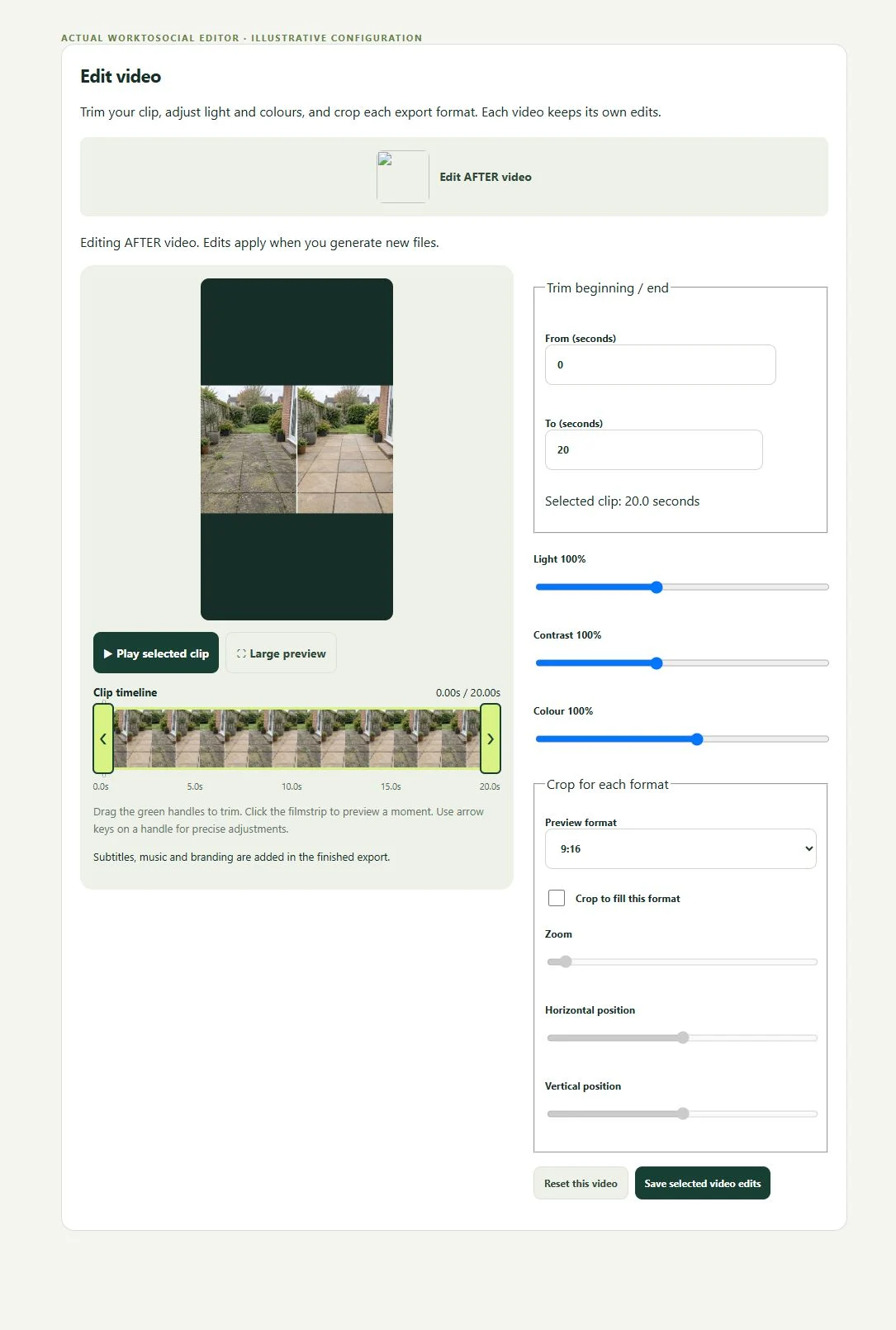
Review words and sound
The actual subtitle editor lets you generate or manually write captions, inspect timing and adjust appearance. Music controls provide track choice, volume and original sound. Play the complete mix.
Explore this part of the workflow →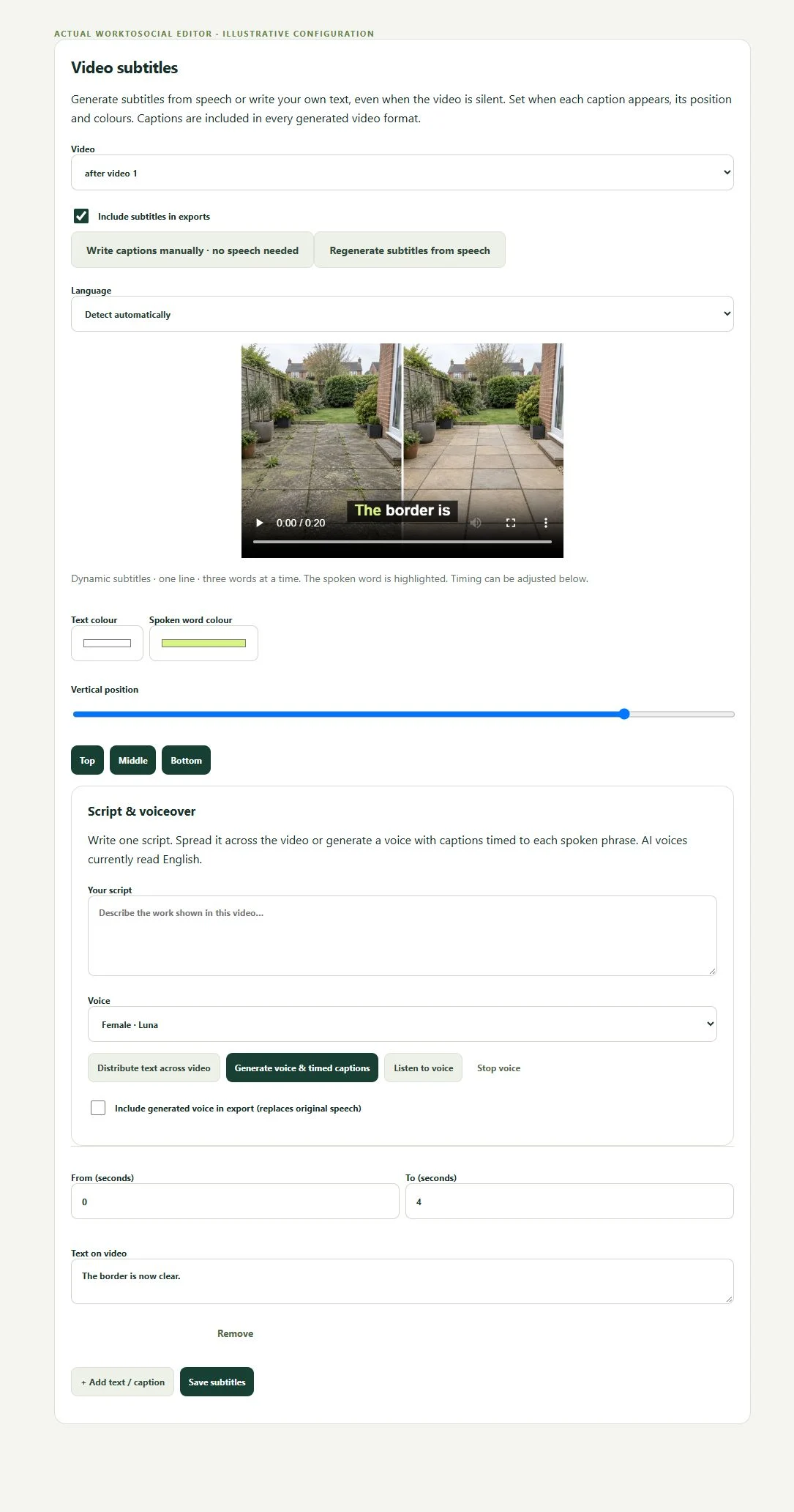
Keep the decision with Office
The source review screen shows job context and privacy checks. Inspect the final generated preview before selecting files to download; current direct social publishing is not active.
Explore this part of the workflow →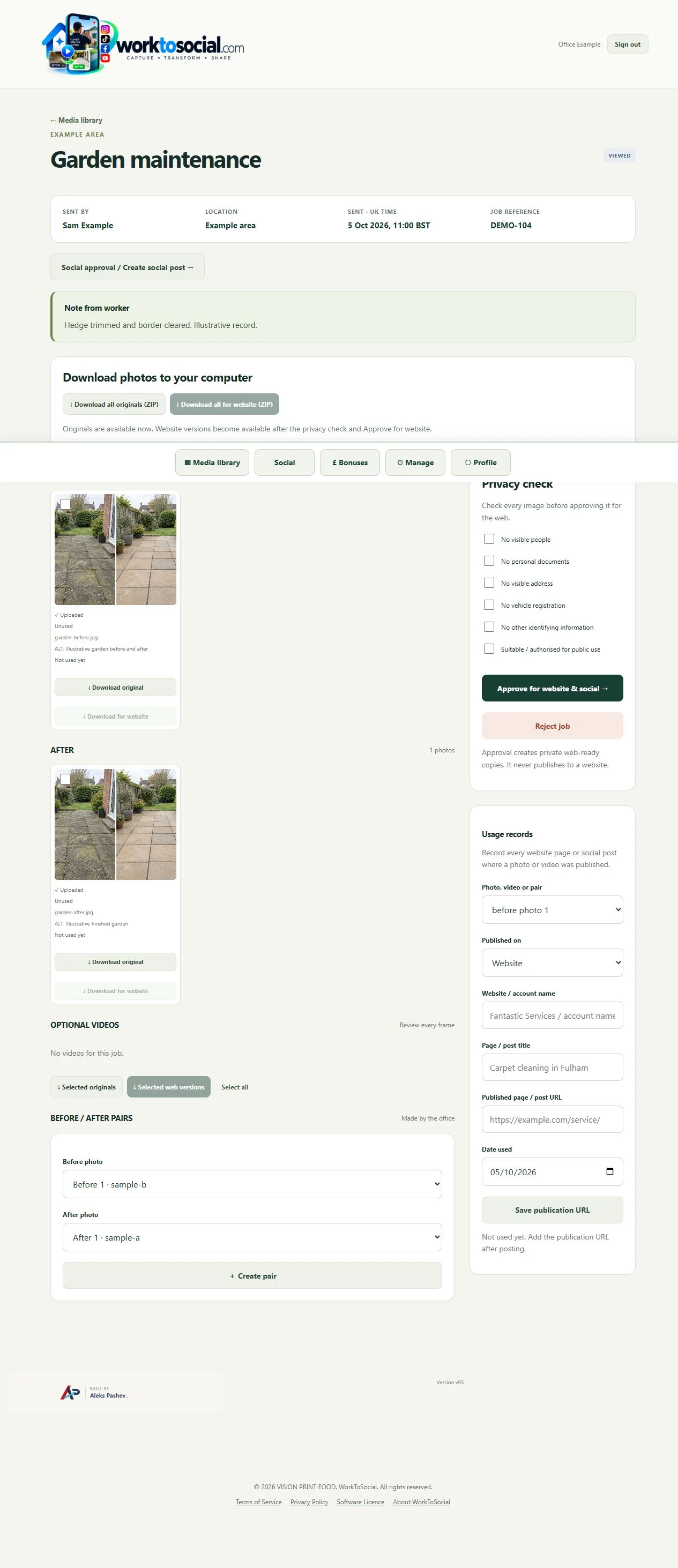
Ready to show what your business can do?
Turn real jobs into consistent, branded content your office can review and use.
Discuss your team’s workflow with us.