Capture in the field. Review in the office. Export for your own publishing workflow.
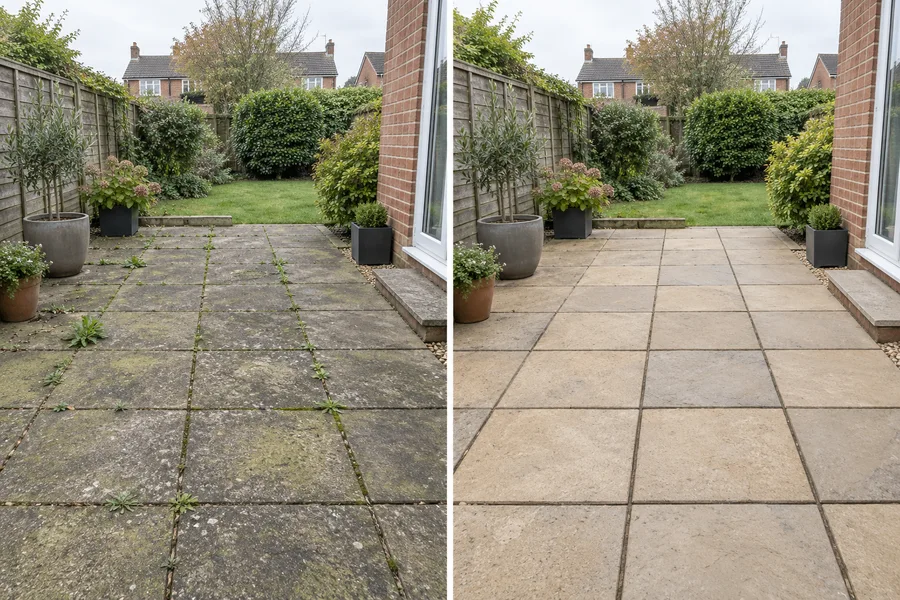
Illustrative visual example.THE PROBLEM
The same subject. A clear, honest comparison.
A useful comparison starts with consistent framing. Take the first photo before the work begins, then return to the same position after completion. Keep lighting and camera angle as similar as the site allows. The point is to show the real change, not to exaggerate a result with different crops or heavy colour adjustments.
01Capture BEFORE
02Return to the same angle
03Capture AFTER
04Office chooses pair
05Review layout
06Export
TWO ROLES · ONE WORKFLOW
A clear handover from the field to the office
WORKER
Capture the work
Workers upload each phase to the job. Office selects a BEFORE and an AFTER photo, creates a pair and checks both for private details. Choose side-by-side or stacked presentation, crop for the selected format and prepare a file for a website or social post. Pairing is deliberate: the system does not guess which two images belong together.
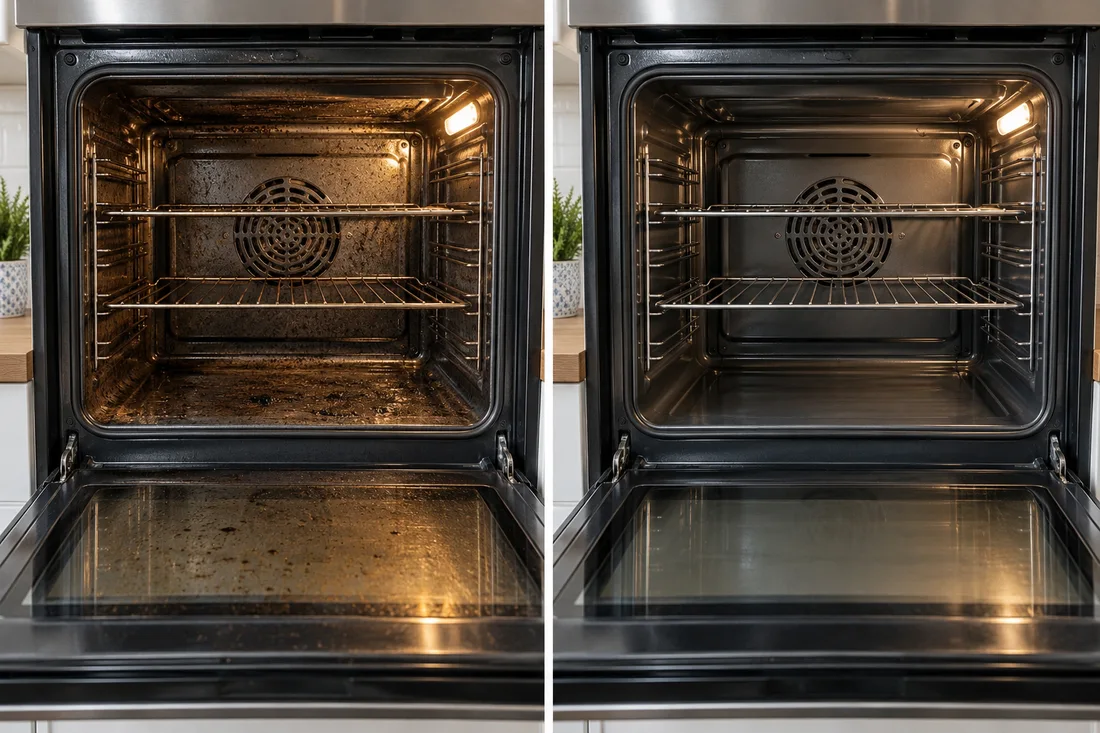
Compare the same oven interior or carpet area; keep the camera position and lighting similar.
Gardening
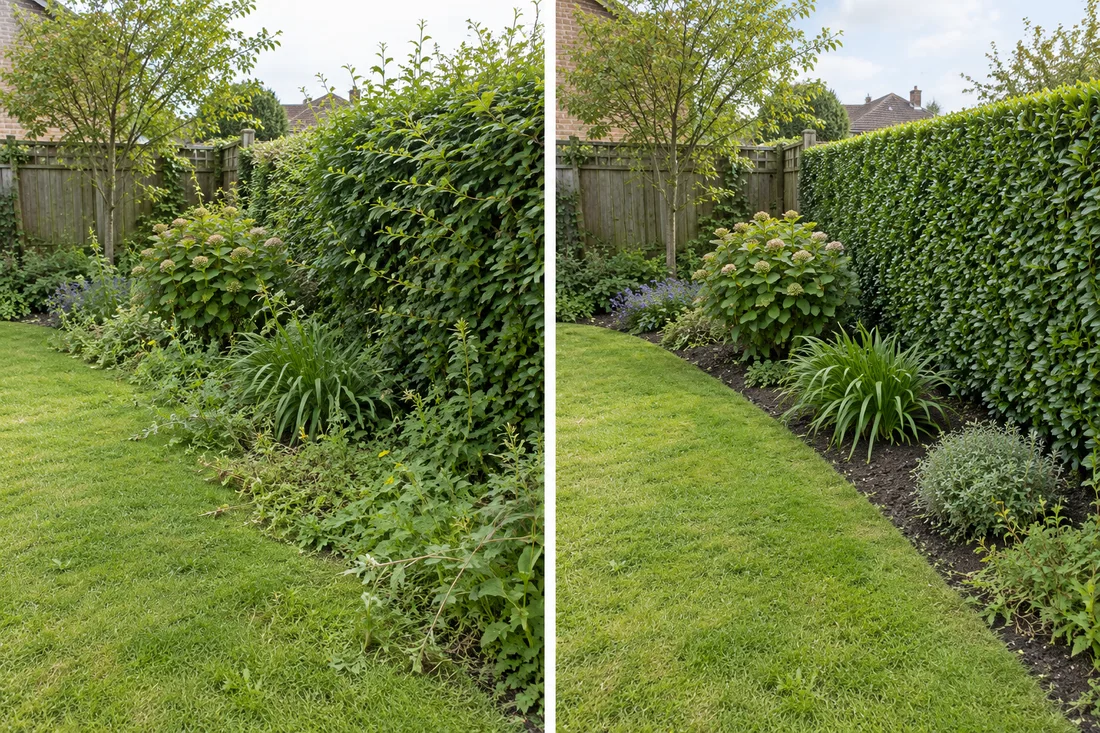
Show a hedge or border before and after the same maintenance visit. Distinguish clearance from a full redesign.
Property maintenance
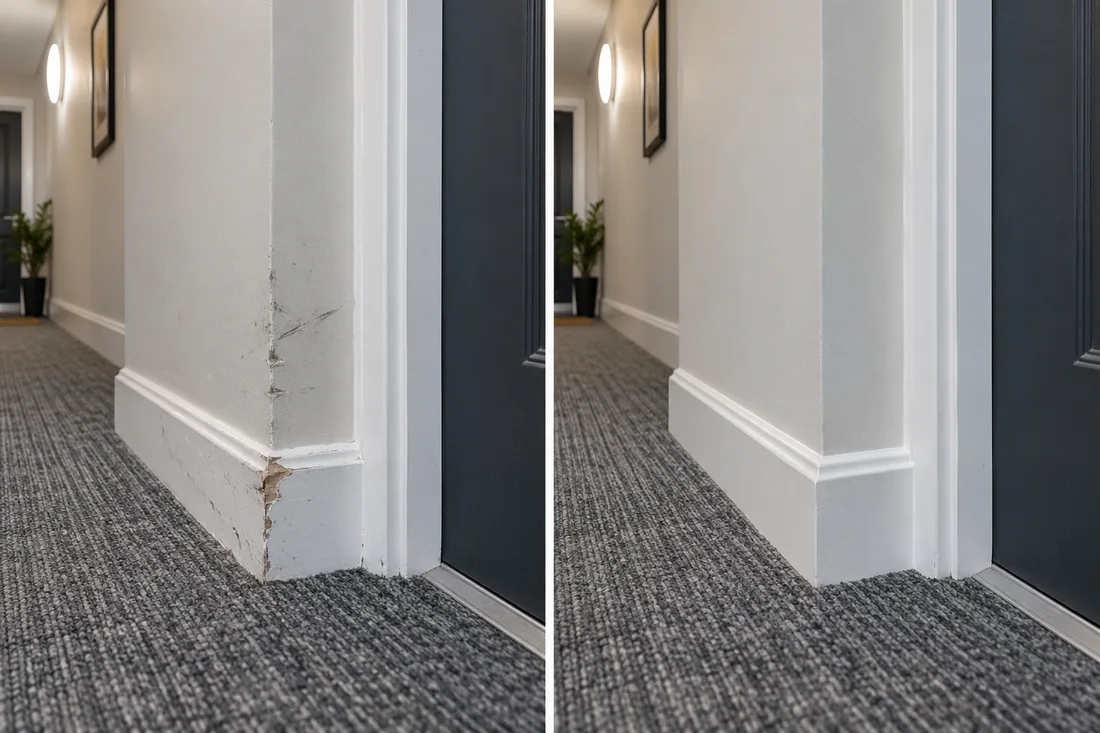
Pair the damaged fitting with the completed repair. Exclude tenant information and private access details.
Handyman
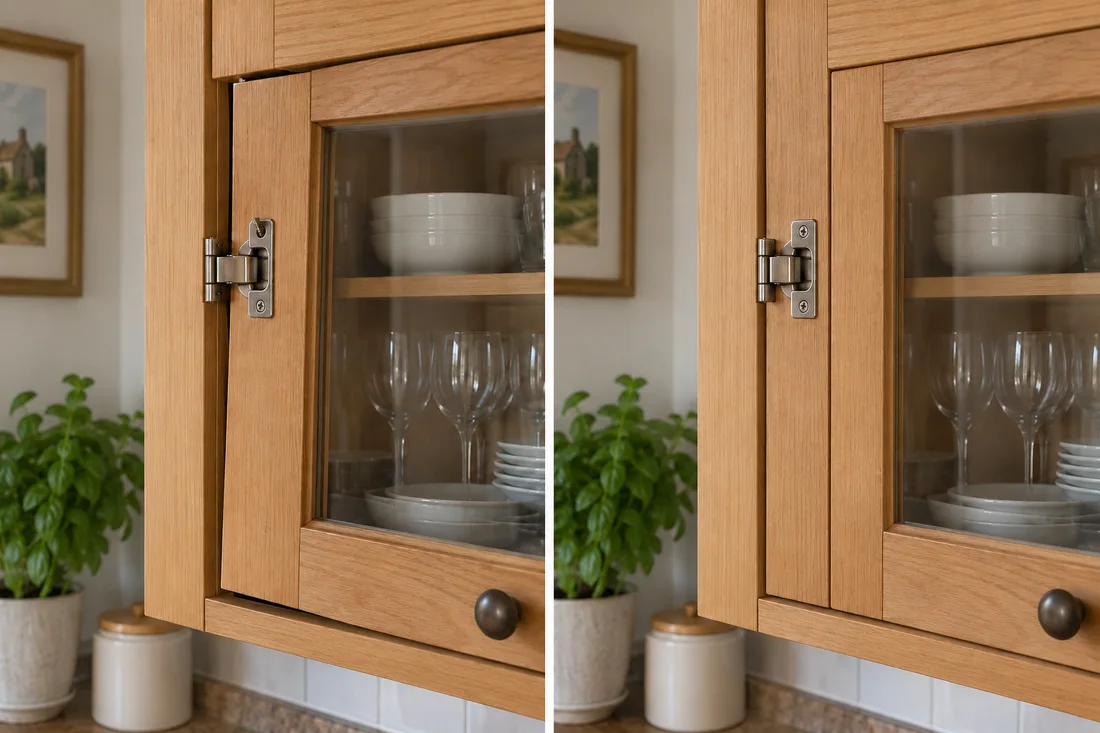
Show the loose hinge and the finished adjustment, or use a single photo when a pair adds little.
MATCHED VISUAL EXAMPLES
Four jobs, four different comparisons
Cleaning · oven interior BEFORE (left) / AFTER (right) · AI-created illustrative example, not a customer result.Gardening · cleared border BEFORE (left) / AFTER (right) · AI-created illustrative example, not a customer result.Property maintenance · repaired finish BEFORE (left) / AFTER (right) · AI-created illustrative example, not a customer result.Handyman · cabinet hinge BEFORE (left) / AFTER (right) · AI-created illustrative example, not a customer result.
IN PRACTICE
A useful example from the field
A garden clearance can show an overgrown border and the cleared space. A deep clean can compare the same oven, carpet or room. For pest control, a useful comparison might show an entry point and the completed proofing rather than distressing close-ups.
Do not create a stronger-looking result by changing the viewpoint, hiding the original issue or applying different colour adjustments to each side. The useful story is the actual change. A paired visual helps a viewer understand the work; it is not a certificate of quality, a guarantee or a replacement for a job record.
● ● ● WorkToSocial · example workspace
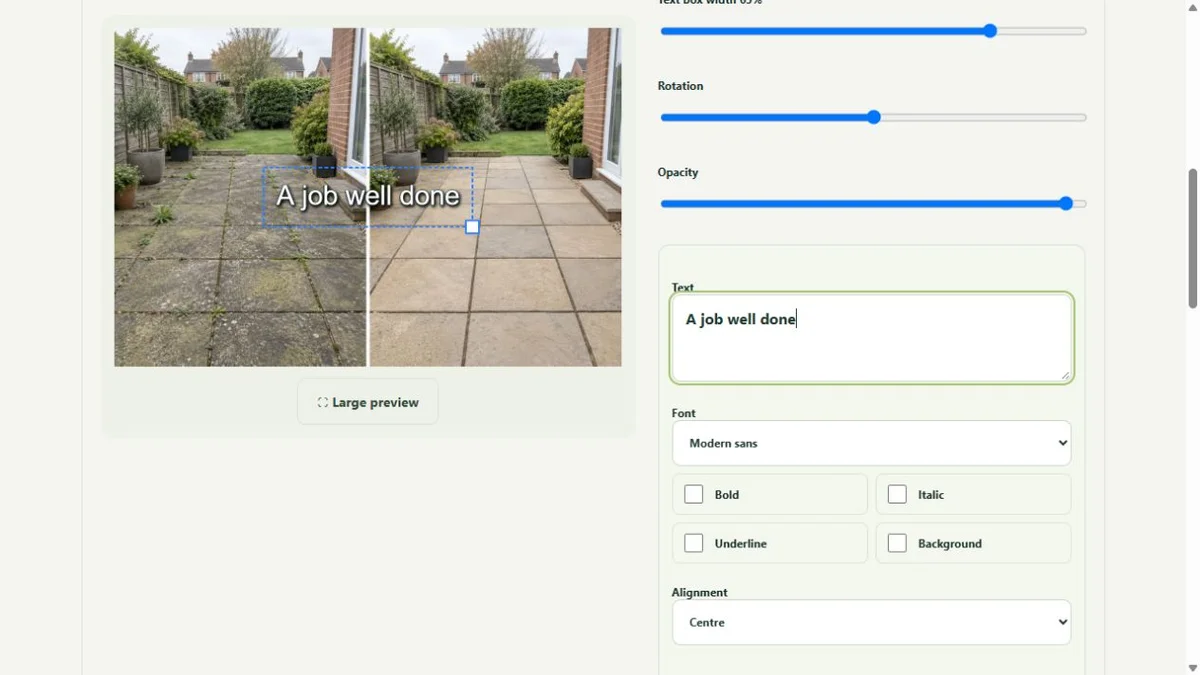
Photo layers and text in the real editor · actual application interface with illustrative records. Select image for full size.QUESTIONS
Before your team starts
Can I use a single finished photo?
Yes. A comparison is optional. Use one photo when it tells the story more clearly, and avoid pairing unrelated scenes.
Does an upload publish anything?
No. Capture, approval and export are separate steps. Direct social publishing is not active in this release.
CONTINUE THE WORKFLOW
Connected tools, explained in context
Photo editing
Crop, adjust, hide private details and add text layers.