
Start with the whole job
Read the service, reference and worker note. Decide whether the material tells a useful, accurate story before spending time editing it.
Give field uploads a deliberate review point before approving website or social use and preparing a finished export.
Capture in the field. Review in the office. Export for your own publishing workflow.
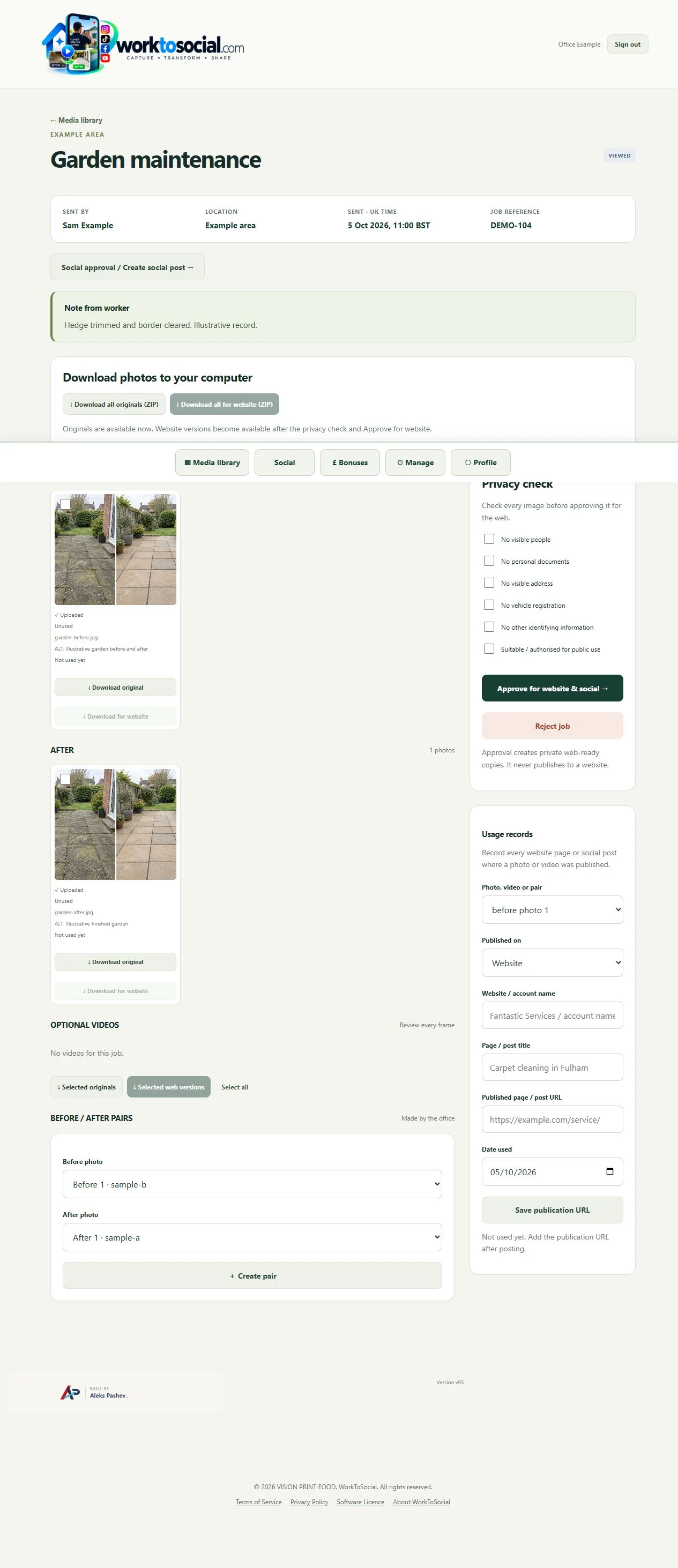
Read the service, reference and worker note. Decide whether the material tells a useful, accurate story before spending time editing it.
Look for documents, addresses, registrations, personal photos, people and other identifying information. For video, review all frames and listen to the audio.
The privacy checklist supports the office’s judgement. Worker publication consent is separate where an identifiable worker appears. Do not assume a completed checkbox establishes every necessary permission.
A crop, text layer, subtitle or final card changes what a viewer sees. Check the actual output after editing and confirm the wording and company contact details.
Source approval and final-preview review are separate checkpoints. Reject unsuitable material or ask for a clearer capture. Downloaded or already published copies have their own lifecycle.
Select the correct company service, capture useful material and submit with a short explanation. Keep uploading until the handover completes.
See the Worker App →Read the job context, inspect the sources, make editing decisions and review the selected final files. Public use remains a deliberate business decision.
Explore the Office Dashboard →Keep the two phases together and select genuine comparisons.
Explore before & after →Crop, adjust, hide private details and add text layers.
Explore photo editing →Prepare a useful clip with reviewed sound, captions and branding.
Explore video editing →Inspect source media and the complete final export.
Explore office approval →Turn real jobs into consistent, branded content your office can review and use.
Discuss your team’s workflow with us.