
Browse job submissions
The library groups source photos and videos around the job. Worker attribution and submission time help the office understand where the material came from.
Search and filter field submissions by service, area, worker, phase and approval status, then open the job behind each image.
Capture in the field. Review in the office. Export for your own publishing workflow.
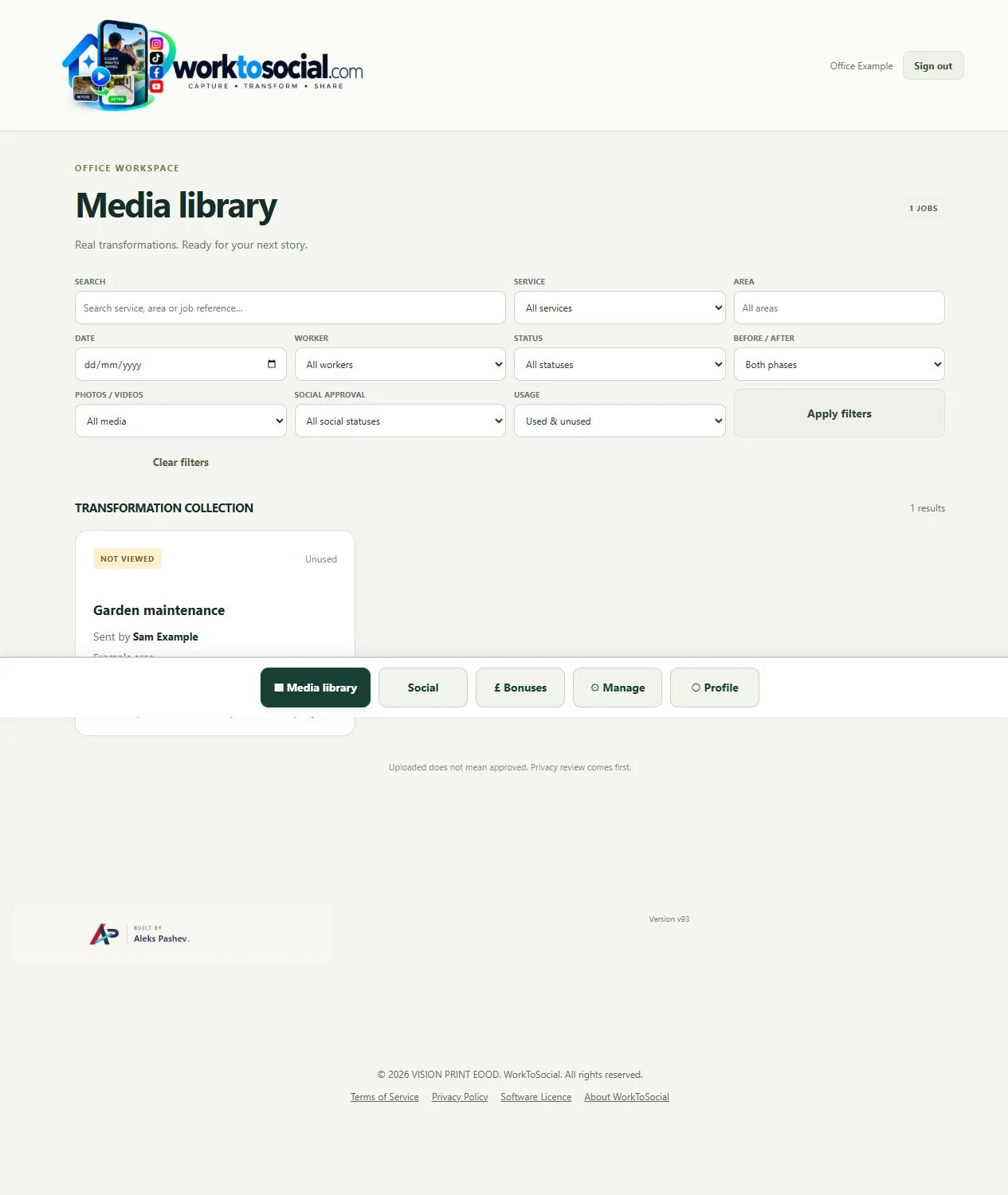
The library groups source photos and videos around the job. Worker attribution and submission time help the office understand where the material came from.
Use search and filters for service, area, date, worker, before or after, photo or video, status and social approval. These are workspace filters, not a public image gallery.
Used and unused filters support content selection. Publication URLs can be recorded against the job or source. This is a record of use, not a live reach or performance dashboard.
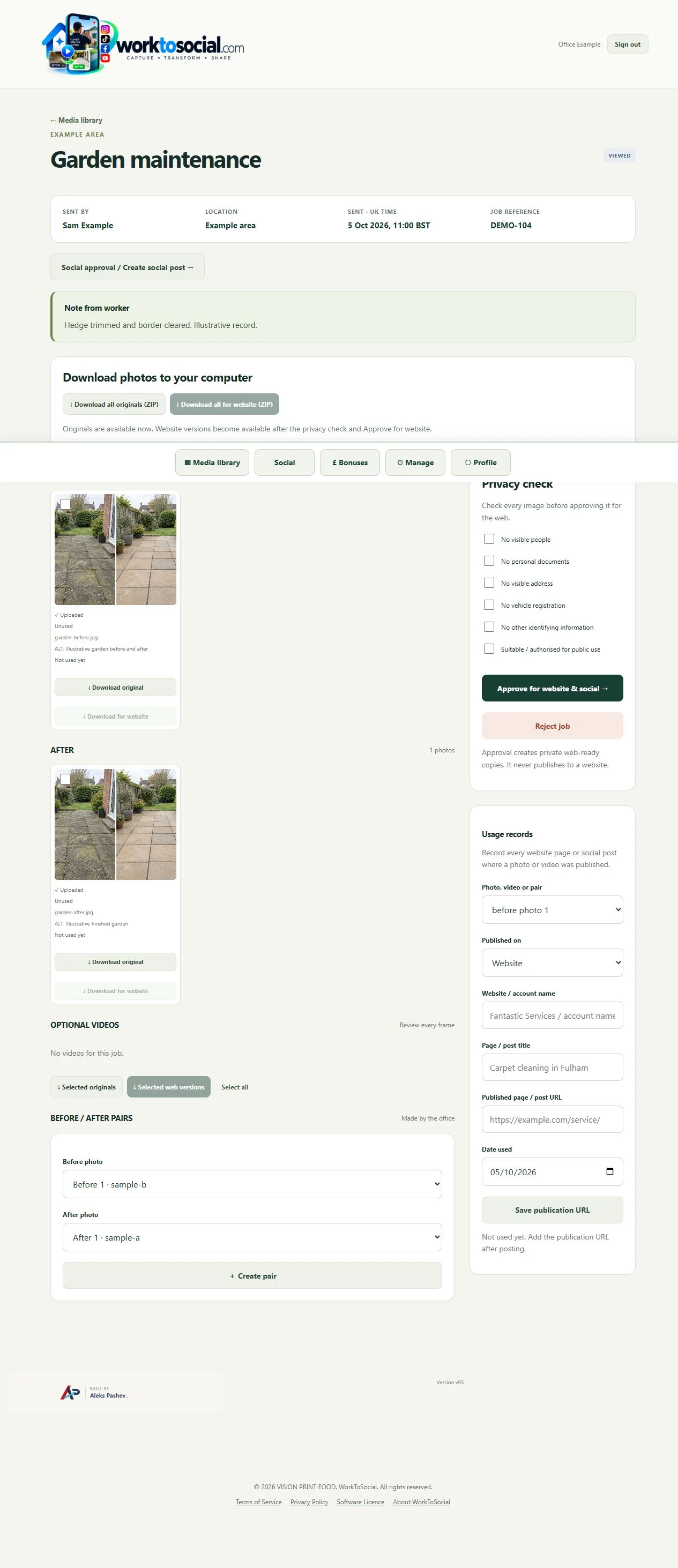
A thumbnail cannot show the full privacy or technical context. Open the job, inspect the source and read the note before selecting content for editing.
Authorised administrators can delete selected media and dependent generated files. Downloaded copies, external publications and retained records follow separate lifecycles.
Select the correct company service, capture useful material and submit with a short explanation. Keep uploading until the handover completes.
See the Worker App →Read the job context, inspect the sources, make editing decisions and review the selected final files. Public use remains a deliberate business decision.
Explore the Office Dashboard →Keep the two phases together and select genuine comparisons.
Explore before & after →Crop, adjust, hide private details and add text layers.
Explore photo editing →Prepare a useful clip with reviewed sound, captions and branding.
Explore video editing →Inspect source media and the complete final export.
Explore office approval →Turn real jobs into consistent, branded content your office can review and use.
Discuss your team’s workflow with us.