Capture in the field. Review in the office. Export for your own publishing workflow.
Actual WorkToSocial interface · sample data.THE PROBLEM
Company identity around real job footage
A useful clip can still look disconnected from your business if the viewer cannot tell who carried out the work. Branding gives the office a consistent way to identify the company without asking every worker to edit their own footage. The result should support the story rather than cover the important part of the image.
01Approve source
02Choose company brand
03Set CTA
04Generate preview
05Check every frame
06Download
TWO ROLES · ONE WORKFLOW
A clear handover from the field to the office
WORKER
Capture the work
Choose the appropriate company brand in the content workflow. Review the configured logo, website and phone number, then prepare the branded video variant for the selected format. Check the full preview before downloading. Some network-specific formats use a clean version, so inspect the actual output rather than assuming every export contains the same treatment.
Use the company’s approved mark. Check its contrast and position in the final format.
Contact and CTA
Use a current website or phone number and a specific next step the business can fulfil.
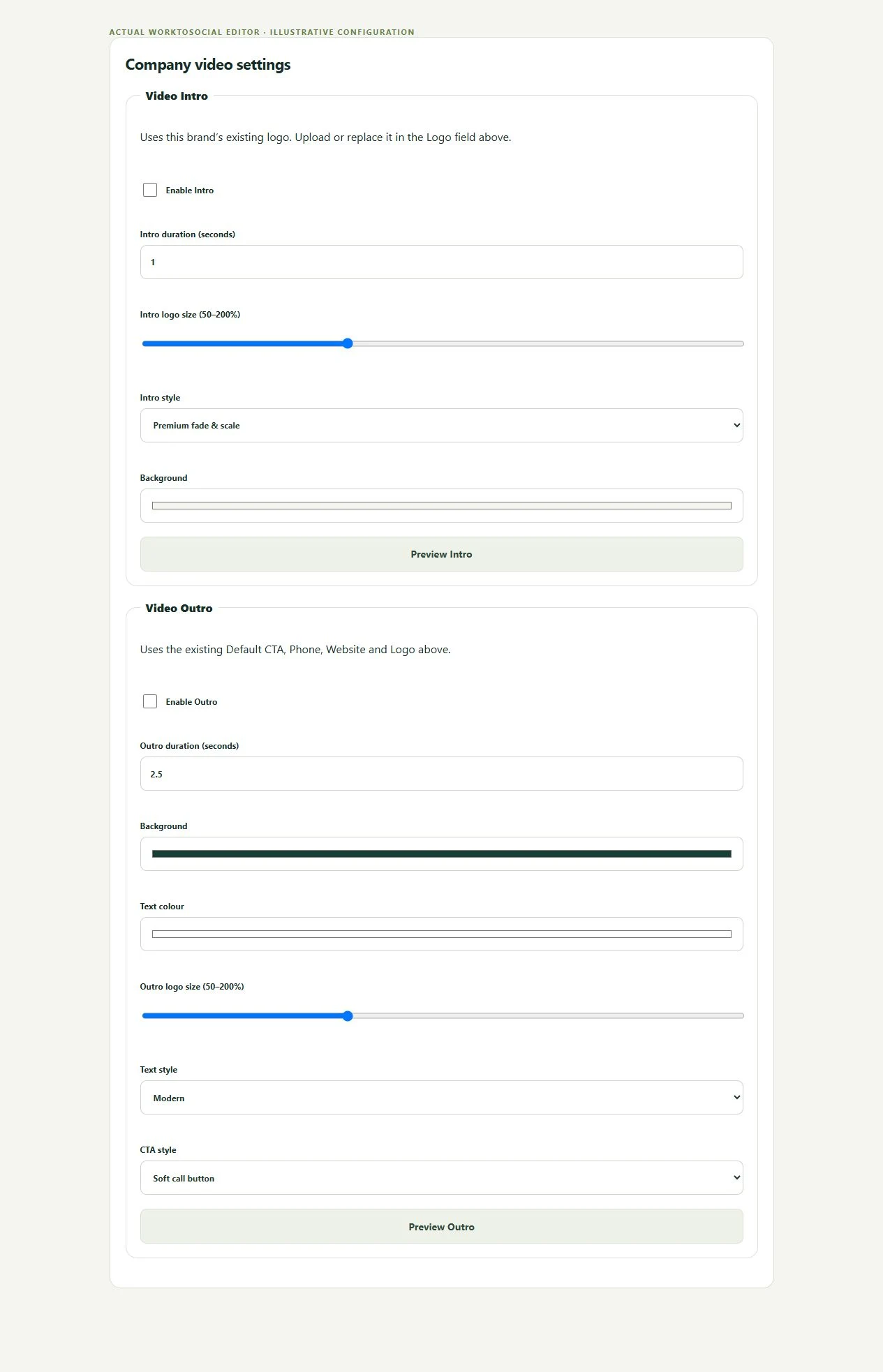
Intro and outro
Keep the opener brief and leave enough reading time on the closing card.
Consistent treatment
Review every chosen format; a portrait crop can position the job differently from a square export.
BRAND SETTINGS → FINISHED CARD
Check the identity and the next step
● ● ● WorkToSocial · example workspace
Actual intro and outro settings · actual application interface with illustrative records. Select image for full size.
● ● ● WorkToSocial · example workspace
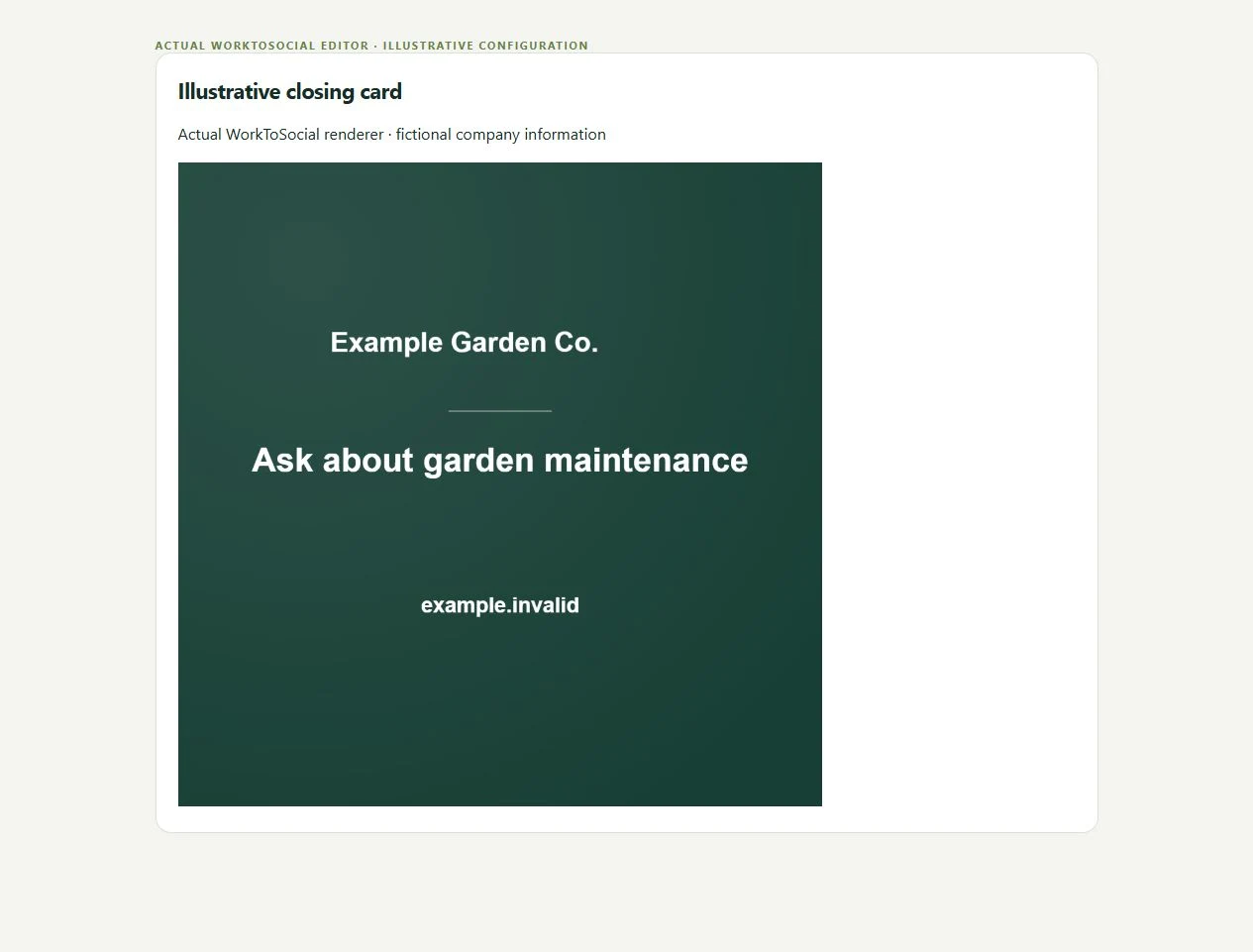
Actual closing-card renderer with fictional company details · actual application interface with illustrative records. Select image for full size.
01Short introduction
02Real job content
03Company closing card
04Clear CTA
IN PRACTICE
A useful example from the field
A cleaning team might use a restrained logo and contact strip for a finished-property walk-through. A handyman can finish a repair explanation with a clear company contact detail. Use current business information and verify that text remains legible on a phone.
The WorkToSocial platform logo identifies the software. The company’s own branding identifies the service business in its content. Do not replace a customer’s company identity with platform branding. An export needs accurate contact details as well as a clear view of the work.
● ● ● WorkToSocial · example workspace
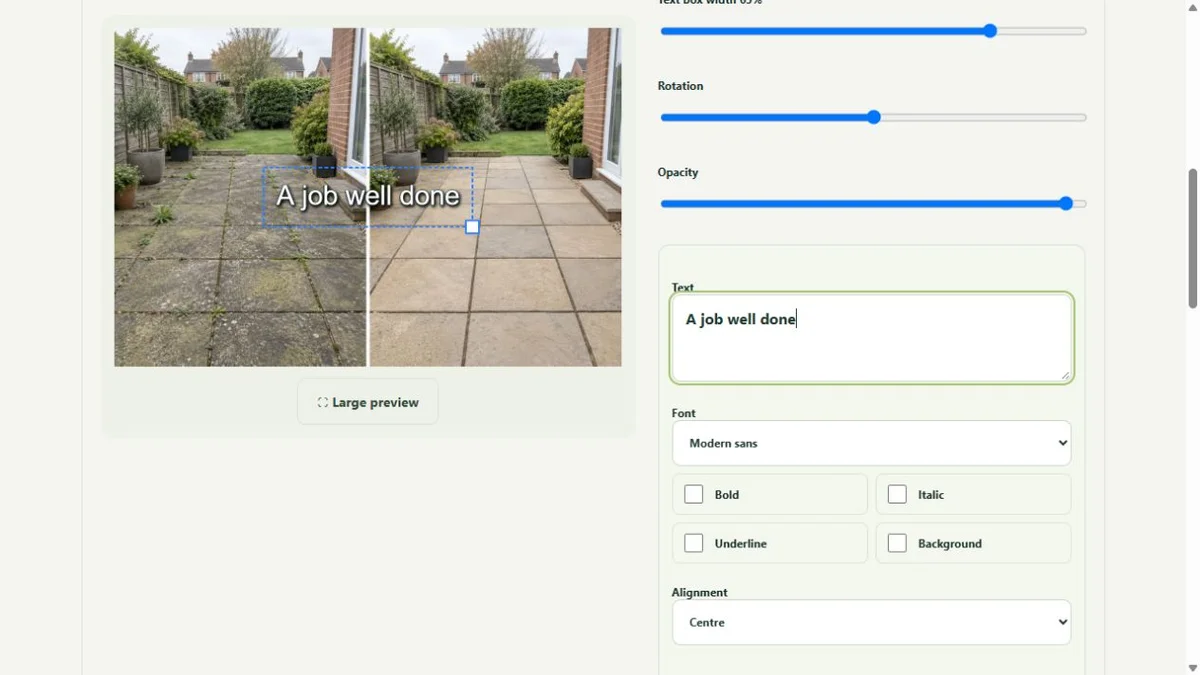
Photo layers and text in the real editor · actual application interface with illustrative records. Select image for full size.QUESTIONS
Before your team starts
Can each business use its own logo?
Yes. Customer branding belongs to the selected company brand. WorkToSocial product ownership does not replace the customer identity in exported content.
Does an upload publish anything?
No. Capture, approval and export are separate steps. Direct social publishing is not active in this release.
CONTINUE THE WORKFLOW
Connected tools, explained in context
Before & after
Keep the two phases together and select genuine comparisons.