
Progress stages
Use a focused progress stages example from a real visit. Capture the relevant result and add enough job context for the office to describe it accurately.
Prepare site-progress photos, finishing details and reviewed field videos for construction business content.
Capture in the field. Review in the office. Export for your own publishing workflow.
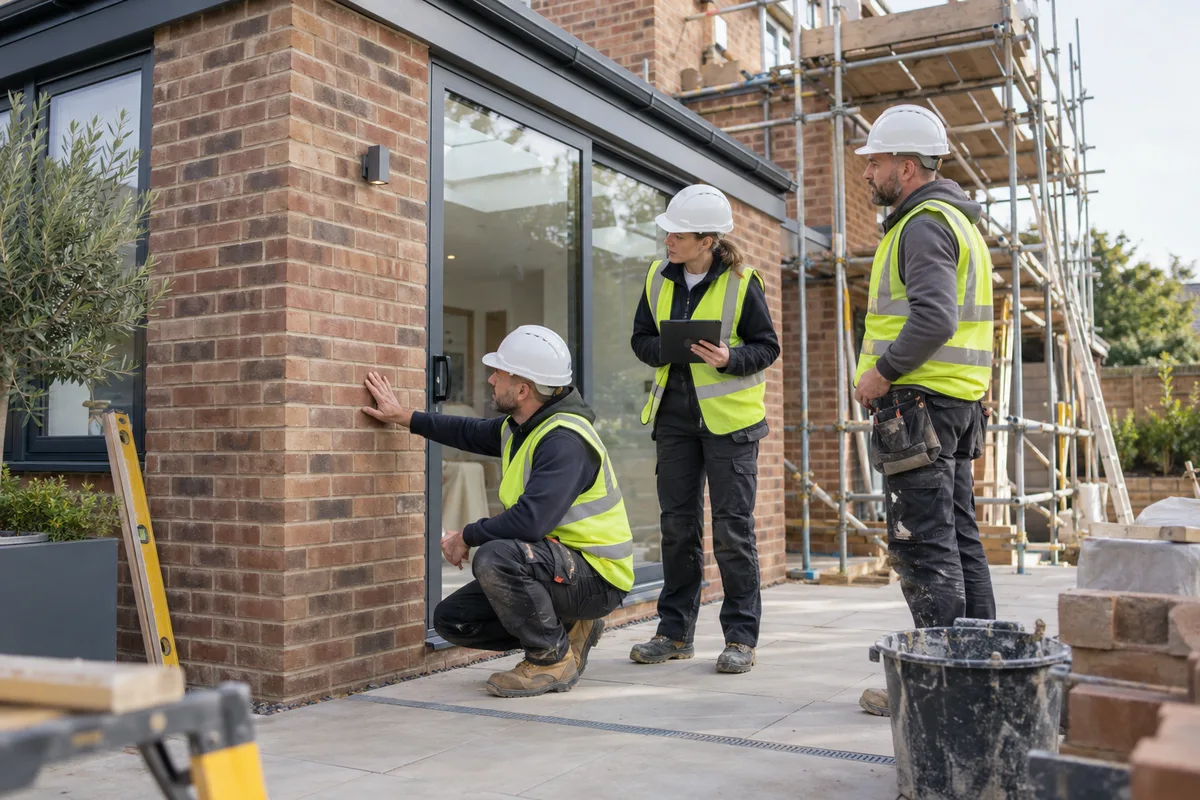
Construction content can show workmanship and progress, but an unfinished stage should not be presented as a completed result. Record the phase of work and explain what the viewer is seeing. Site imagery may contain workers, client information or unsafe situations that need careful review.
Use a focused progress stages example from a real visit. Capture the relevant result and add enough job context for the office to describe it accurately.
Use a focused completed work example from a real visit. Capture the relevant result and add enough job context for the office to describe it accurately.
Use a focused site teams example from a real visit. Capture the relevant result and add enough job context for the office to describe it accurately.
Use a focused trades example from a real visit. Capture the relevant result and add enough job context for the office to describe it accurately.
Use a focused finishing details example from a real visit. Capture the relevant result and add enough job context for the office to describe it accurately.
Use a focused project context example from a real visit. Capture the relevant result and add enough job context for the office to describe it accurately.
Capture a meaningful overview and a detail at the relevant stage. Add a job note identifying the work performed. Compare the same area when a before-and-after sequence is appropriate, and avoid implying that a small improvement represents an entire completed project.
See the Worker App →Office checks the context, people and private details, then edits selected media into a readable presentation. Branded intros or closing cards can identify the contractor; subtitles help explain a specific process. The customer remains responsible for permissions, accurate claims and any applicable site restrictions.
Explore the Office Dashboard →Show a useful overview and a detail of the work at this stage. Do not present an unfinished project as complete or suggest the image certifies compliance.
Check site rules before capturing material. Record the stage and task, then review people, client information and safety context. WorkToSocial is a content workflow, not a construction compliance system.
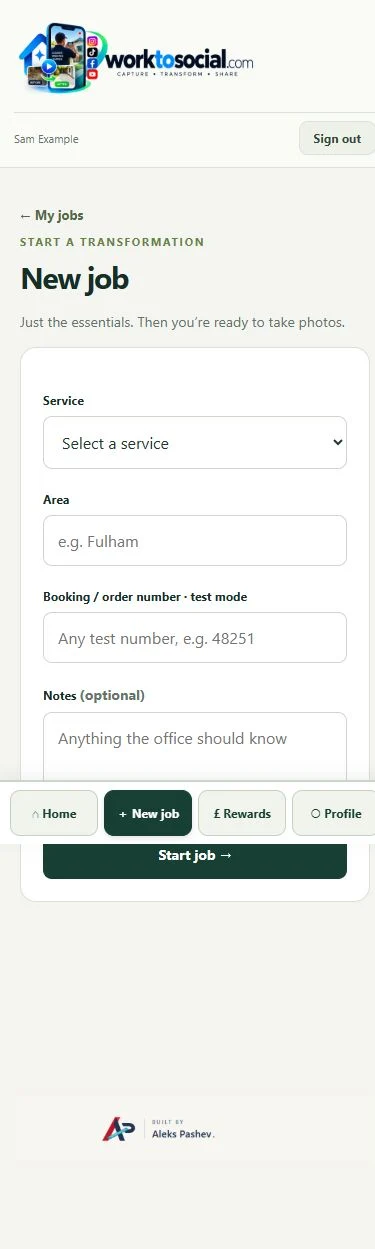
Check site rules before capturing material. Record the stage and task, then review people, client information and safety context. WorkToSocial is a content workflow, not a construction compliance system. The final check should cover privacy, accurate wording and the company’s current contact details. A downloadable file is ready for your own publishing process; it has not automatically been posted to a social account.
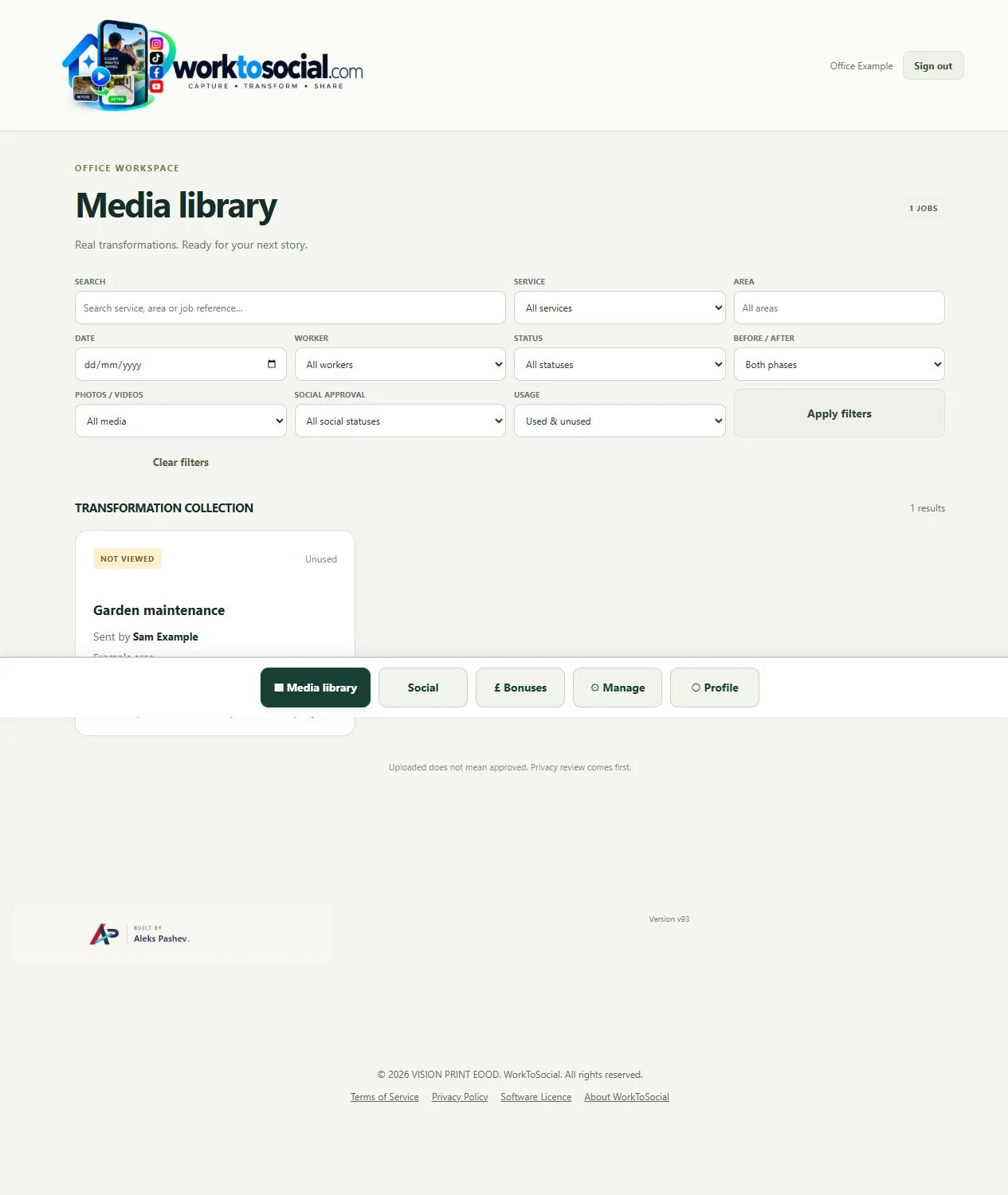
No. WorkToSocial is a field-media and content workflow. It does not certify construction compliance or replace statutory site records.
No. Workers capture useful source material. The office selects, edits, brands and exports the content.
Explore the tool most relevant to this industry’s source material.
Explore field videos →Connect this step to the rest of the office workflow.
Explore video intros and outros →Give the team a clear capture and submission routine.
Explore worker app →Turn real jobs into consistent, branded content your office can review and use.
Discuss your team’s workflow with us.
Retain the project phase and job context.
Explore field photo management →Choose a stage and check its public explanation.
Explore office dashboard →A visual example is not a compliance record.
Explore proof of work →