
New instructions
Use an approved exterior and a short agent introduction. Check that the instruction is ready to be announced.
An agent leaves a property with useful photographs, a short room walkthrough and a few details worth explaining. Those files can become listing content, an agent introduction or a local-area story—but only when the marketing team knows which property, which instruction and which facts belong to them.
Capture in the field. Review in the office. Export for your own publishing workflow.

A kitchen detail, a garden clip and a voice explanation may arrive at different times. Meanwhile a listing changes from new instruction to under offer, sold or let. The office needs current facts and permission before choosing a public story. A tidy media handover helps keep photographs attached to the right instruction without turning this workspace into a property portal or CRM.
Use an approved exterior and a short agent introduction. Check that the instruction is ready to be announced.
Record a steady room sequence or one useful detail such as natural light, storage or a garden connection.
Use only an office-confirmed status and wording. Remove old availability claims before exporting another version.
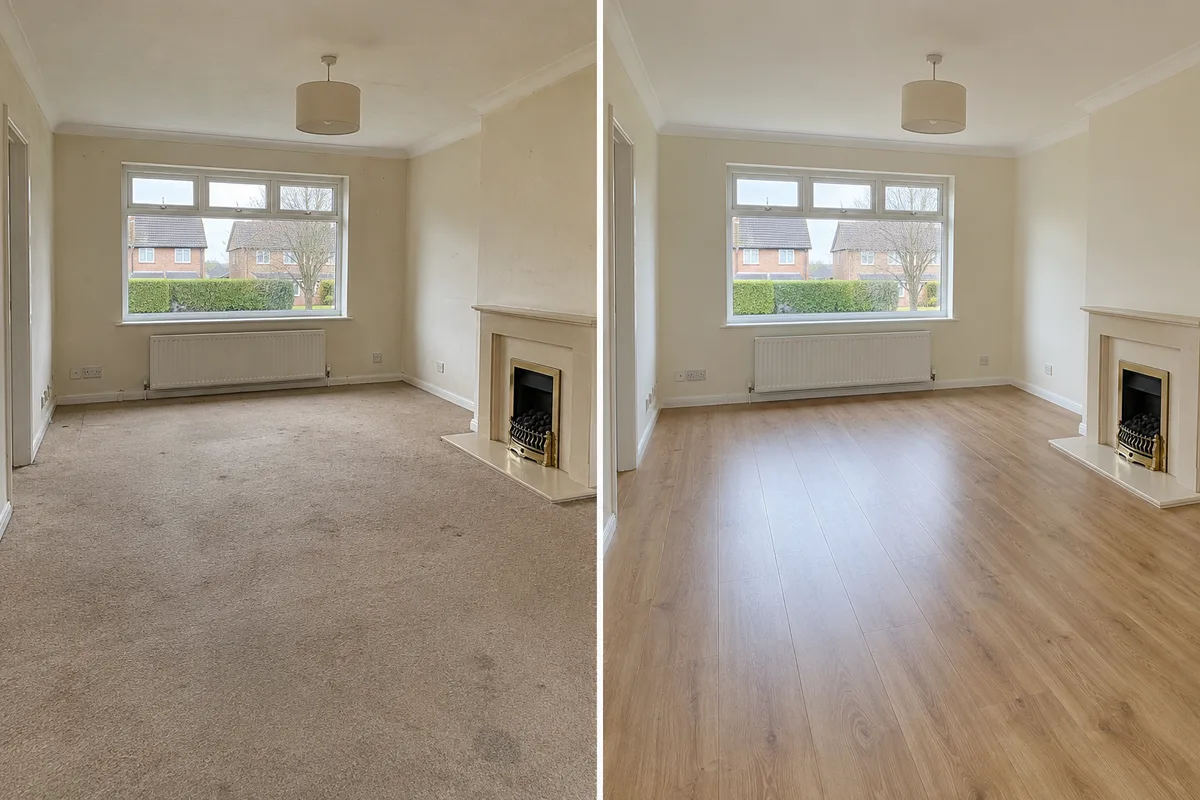
Show relevant surroundings or a genuine refurbishment comparison, with the same viewpoint and an explanation of what changed.
Use company-configured services and existing job fields. Illustrative workflow; outputs are downloaded for your chosen publishing process.
Select the company service configured for the visit and add a property reference the office can recognise. Capture a useful overview, feature details and a short clip rather than an unexplained batch. Keep occupants, family photographs and private paperwork out of the public story.
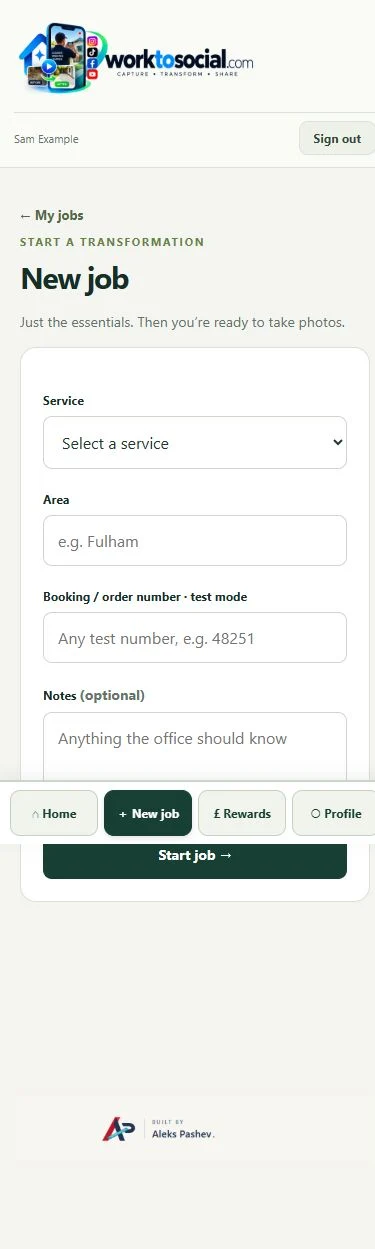
See the Worker App →Check the instruction, publication permission and current property status. Choose a clear sequence, review every spoken fact and add the authorised company identity or agent contact information. Subtitles can support an introduction; music should leave the agent’s voice understandable.
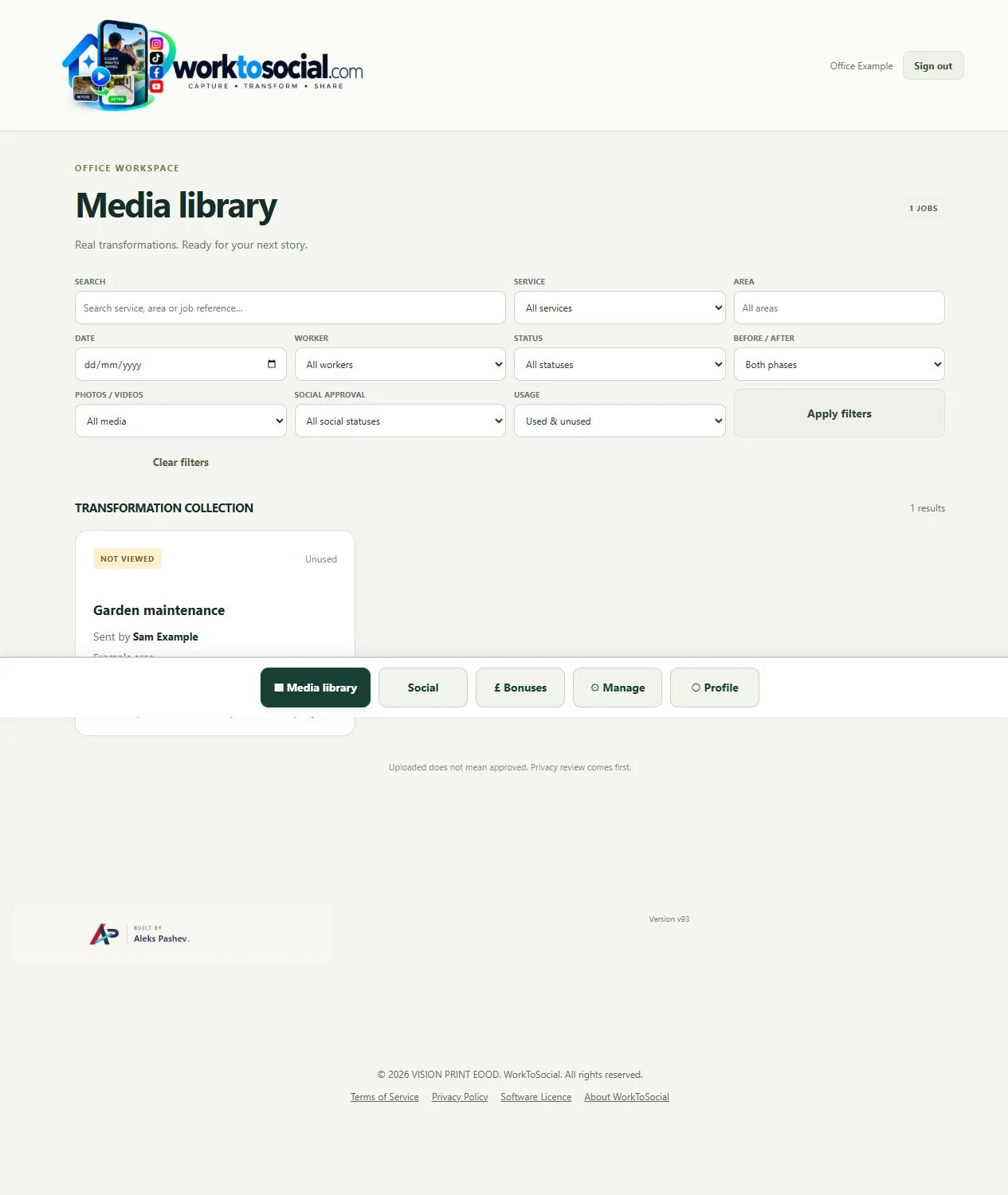
Explore the Office Dashboard →For a new instruction, the agent records an entrance-to-living-room clip and a garden photograph. Office prepares a brief walkthrough, then selects the garden view for a separate feature post. Weeks later, the original content is not reused as an available listing without checking the status. A sold announcement needs its own accurate text and an approved image.
A refurbishment comparison belongs to the same room before and after the work. Match framing, keep dates and scope clear, and do not disguise defects or imply that a virtually altered room is the actual property.
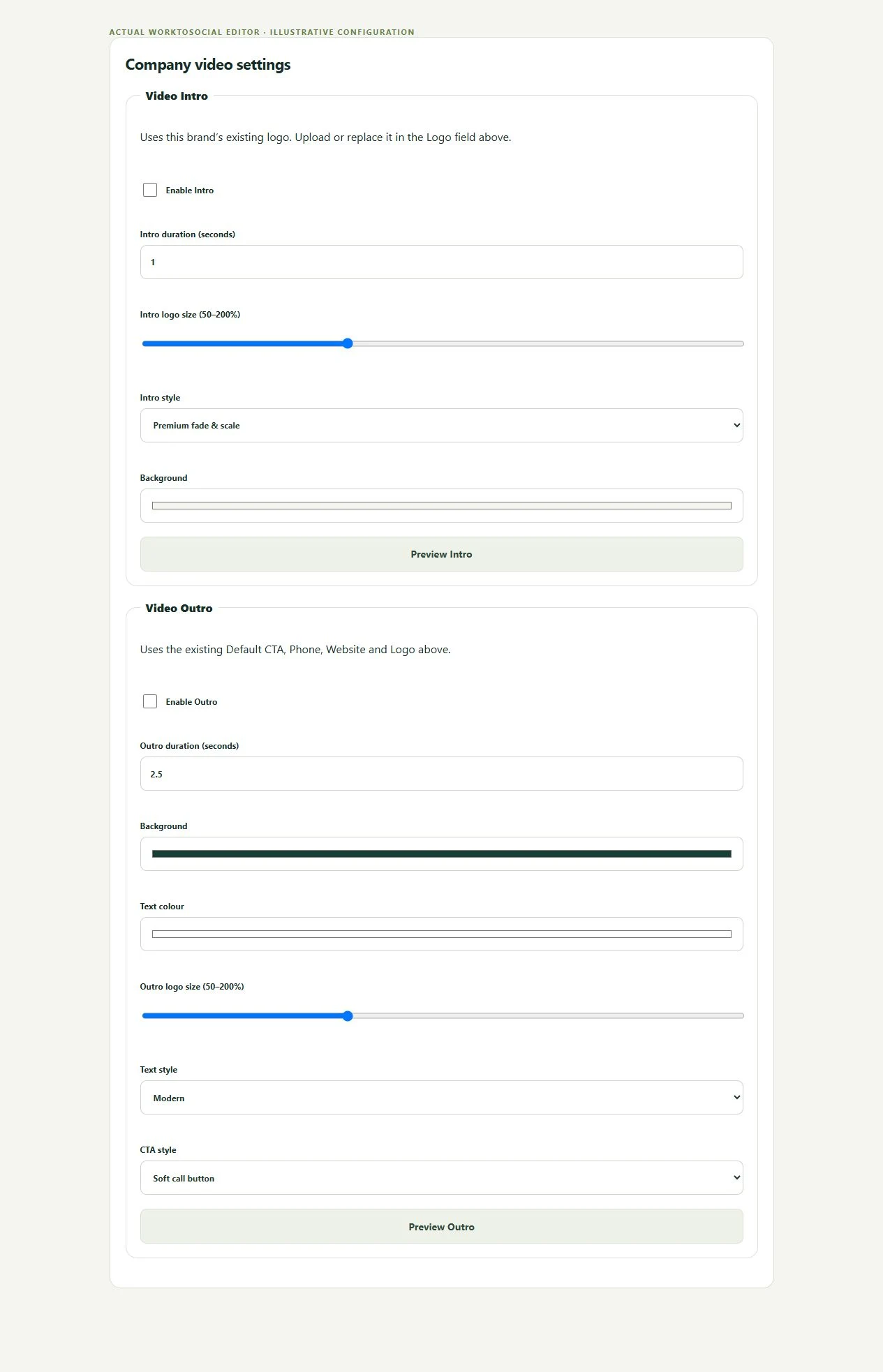
The company identity belongs around the property story, with the authorised contact details in the final presentation. A spoken introduction can use reviewed subtitles; a silent feature clip can use selected music. Watch the full export before deciding the property is ready to show.
The interface example uses a fictional service company to show the same branding controls. It is not a property listing generated for a customer.
Check the instruction, publication permission and current property status. Choose a clear sequence, review every spoken fact and add the authorised company identity or agent contact information. Subtitles can support an introduction; music should leave the agent’s voice understandable.
The public-use decision is separate from capture. A selected image or clip can be edited and prepared, but an upload does not publish it. Keep the final text tied to this task, check visible details and current company contact information, then use the downloaded file in the business’s chosen publishing workflow.
No. WorkToSocial organises capture, review and content preparation. Listing records, enquiries, valuations and property transactions stay in the systems chosen by the agency.
Yes. Submit a short clip, then review the speech, subtitle wording, branding and contact details before exporting it. Current capture limits still apply.
Yes, as reviewed content. Office must confirm the status and authorised wording; WorkToSocial does not synchronise a listing status from a property portal.
Capture a purposeful short property clip.
Explore field video app →Keep the agency identity and contact details clear.
Explore video branding →Make the instruction-to-marketing handover visible.
Explore office dashboard →Turn real jobs into consistent, branded content your office can review and use.
Discuss your team’s workflow with us.