

Give the upload a job to do
A marketing colleague opens a folder and finds six photographs of a driveway. Two show different corners, one shows equipment, and three show the finished surface. The files arrived without a job reference or explanation. The colleague can see a driveway, but cannot tell which pictures belong together or describe the work with confidence. Every question means another message to the field team.
A useful handover gives the recipient enough information to make a first decision. Can they identify the service, follow the sequence, choose a relevant image and find someone who can verify the description? Ask those questions before deciding which fields to require. An upload should take a worker a short time to complete and save the reviewer a longer search later.
The WorkToSocial field photo management overview describes the planned way to organise job media by service and team. Media & Social is coming soon. The handover principles below can be applied to a shared folder or an existing job workflow today.
Use a reference that the office can resolve
Give each submission the internal job reference used by the people who can answer questions about it. Where several people capture the same job, agree which reference they should use. This makes it possible to reconcile uploads when one arrives before the others. If a job has several visits, add the visit or stage in a consistent way.
Choose the service from the terms your business already uses. A label like exterior cleaning can help the office route the submission to the right colleague. A note can then specify which part of that service the media shows. When the service name is uncertain, flag the question in the handover so the office can check it before writing public copy.
Keep the internal reference in the handover record. Public captions usually need the service and a useful account of the work. Customer names, full addresses and identifying job details belong only where the team needs them for its authorised work. A writer can use a verified service description without seeing the entire booking record.
Record the sequence while it is fresh
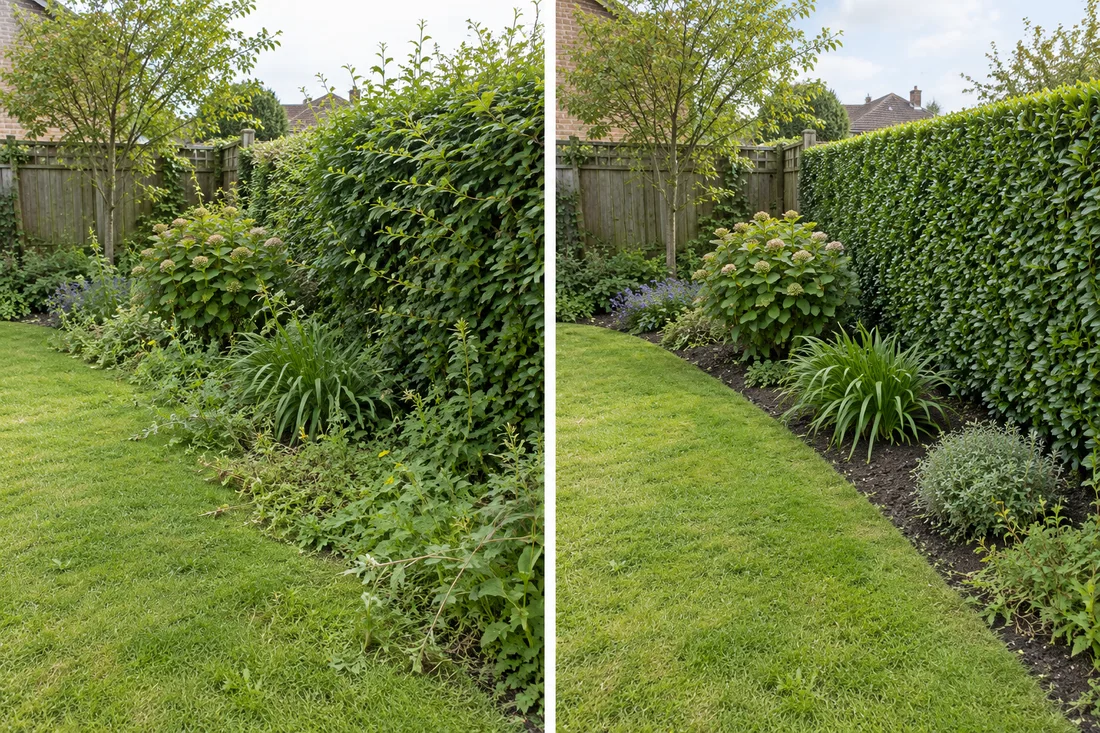
For a before-and-after set, mark which image shows the starting condition and which shows the outcome. Add an intermediate label if a photograph shows work in progress. Do this when selecting the files. Timestamps can help reconstruct the sequence, but files may arrive out of order or have been saved from another device.
Use a comparable viewpoint when the point is to show a change. A close-up can be valuable for explaining a detail. Pair it with a wider view when the reviewer needs to understand where the detail belongs. The guide to before-and-after photos covers framing and lighting choices that help viewers read the comparison.
Mention anything that changes how the viewer should interpret the pictures. Perhaps one section was photographed before it dried, or the finished image shows only the part completed on that visit. That note can prevent the office from turning a partial result into an account of the whole job. The recipient can then decide which images to use together.
Write a note another person can verify
A useful field note explains what the viewer is looking at and what action the team took. Write one or two specific sentences. For example, a worker might say the images show the patio steps and adjacent paving before and after a routine surface clean. If the material also shows a patch left for a later visit, identify it so the reviewer can describe the scope accurately.
Record an uncertainty when it affects the story. A worker may know which surface was cleaned and be unsure what caused a mark. The office can publish a clear account of the work after checking it. A claim about the cause needs evidence from someone who can verify it.
Include a way for the reviewer to follow up through the internal workflow. The person who sent the photos may know the sequence, while a service lead may need to verify the description. A named contact makes the note a starting point for review. It also saves the writer from filling missing facts with stock promotional language.
Select the files the reviewer needs
Send enough material to explain the work. A clear pair, one detail photograph and a short note can be more useful than many nearly identical files. If two shots have different purposes, say which one gives the overview and which shows the detail. Let the office know when there are additional files available for an internal review.
Check the submission after sending it. Confirm the selected files are present and that they open. If an upload is interrupted, identify which files arrived before resending anything. This helps the office distinguish an incomplete set from an intentional selection and avoids duplicate versions competing for attention.
Flag any visible information that needs particular care before public use. The office still needs to inspect the full frame, review audio when applicable and check the finished export. The office review guide explains those decisions in more detail. A short note from the field helps the reviewer know where to look first.
Try the handover with a sample maintenance job
Imagine a maintenance team finishing a patio clean. In this hypothetical example, the worker sends an overview pair and one close-up of the steps. The record carries the internal job reference, the service name and a stage label for each photograph. The note explains that the images show the same area, with the close-up included to show the step edges.
The office reviewer opens the files and checks that the pair matches the description. A wide image includes an identifying detail at the edge. The reviewer holds that image and asks for a replacement, keeping the other materials available for review. The worker can identify the requested shot from the reference and stage label.
After receiving a suitable replacement, the reviewer checks the proposed caption with the service lead. The editor prepares an export and the office checks the selected image and final wording before approving it for the intended use. The useful output is a file and caption whose source, purpose and review history are clear.
Give the office a clear next action
Assign a reviewer to each new submission or each service group. Agree who covers the role when the usual reviewer is away. A received upload should have a visible next action, such as ready to inspect, waiting for a missing detail or held for a decision on public use. Choose labels the team already understands.
When returning a submission, ask for something specific. A request for the after image from the same position gives the worker a task they can complete. A request for better photos can produce another batch with the same gap. Use the same job reference when a replacement arrives so it can be matched to the original question.
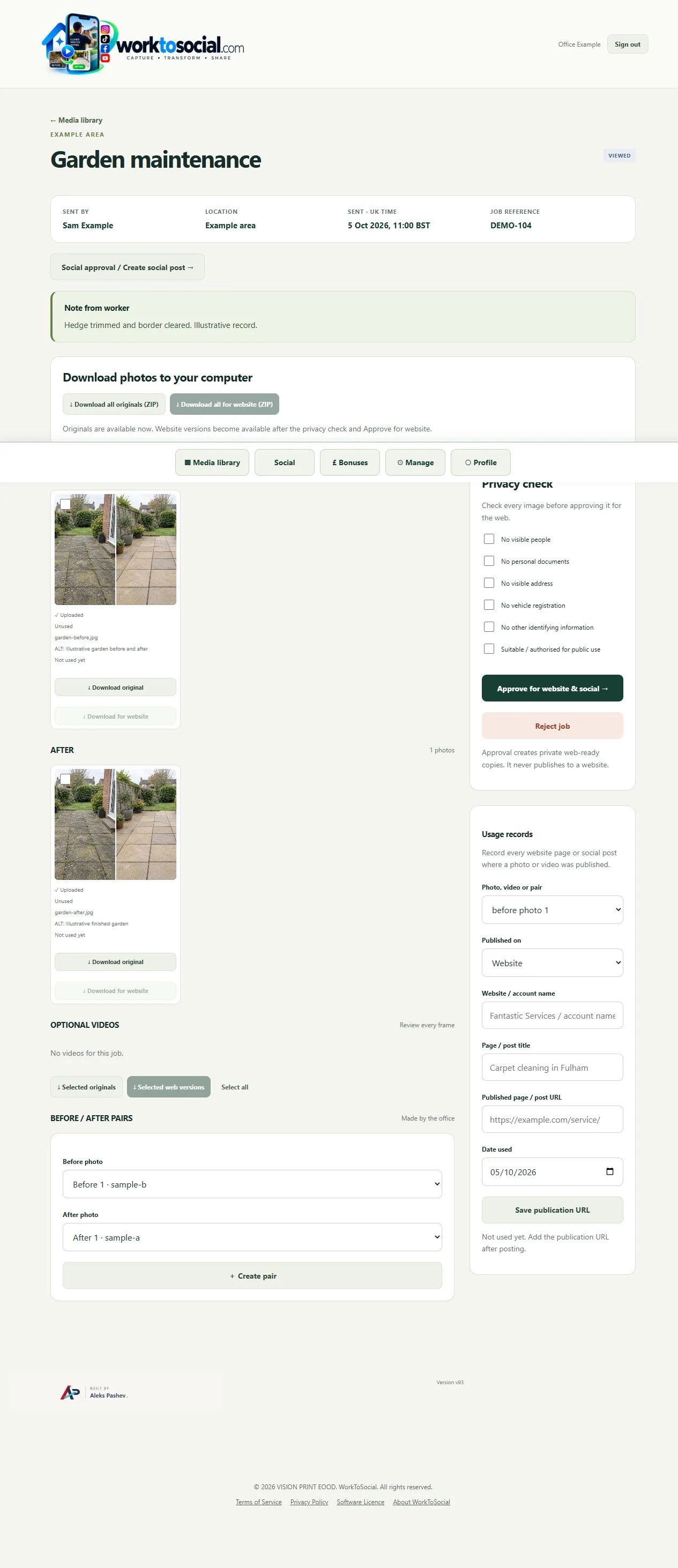
The planned WorkToSocial Office Dashboard describes how office teams review incoming material and prepare selected outputs. Read the content approval overview to see where source review and final review fit. The business decides which finished material is suitable for its publishing workflow.
Run a small trial with your own team
Pick one service and agree a short handover format. Start with the job reference, service, stage labels, a descriptive note, the selected files and the reviewer. Ask one worker to submit a real set through your existing internal process. Have the reviewer record which questions they still needed to ask before they could choose an image and verify the wording.
Use those questions to refine the format. If the office repeatedly needs to ask which visit a file belongs to, give the worker a simple place to record the stage or visit. If a field adds work without helping the reviewer decide, simplify it. Keep the instructions close to the point of upload so workers can use them on a normal day.
Review the next few submissions with both teams. A successful trial should leave the office able to identify the job, understand what the files show and request a specific correction when needed. Once that works, apply the same format to another service and adjust only the details that service requires.
Competitor Spy and Duplicate Auditor have their own plans and usage limits. Media & Social is coming soon. Product findings support human review; they do not guarantee rankings or commercial results. Check the linked product pages for current details.