Decide what the comparison should explain
Before-and-after photographs can help a potential customer understand a visible task without reading a long technical description. A cleared border, an adjusted fitting or a cleaned surface may be easier to explain with a fair pair of views. The useful starting point is the question the images can answer, rather than the desire to make a dramatic promotional post.
Choose one subject and define the scope. If a team maintained a border, the story should concern that border, not imply a complete garden redesign. If a visit involved one appliance, do not suggest that the whole property received the same treatment. A short internal note can establish what was agreed, what was completed and any limitation an editor needs to understand.
The forthcoming WorkToSocial Media & Social workflow is designed around field capture, office review and prepared exports. It is coming soon and is not available to purchase. The before-and-after workflow preview describes deliberate pairing of source images; good source material and accurate context remain the team's responsibility.
Make the first photograph easy to repeat
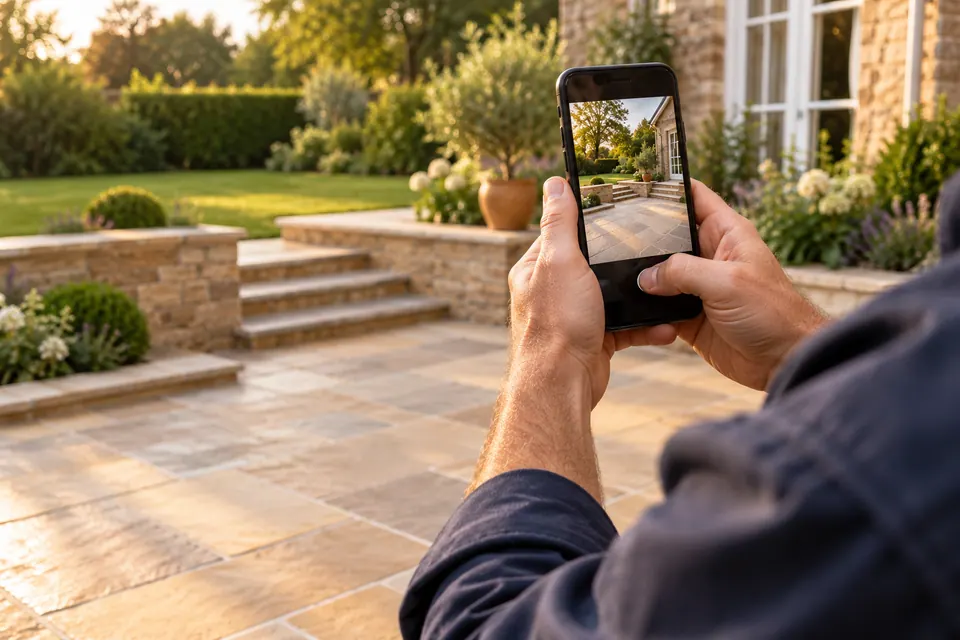
Take the starting photograph before the relevant work begins, when it is appropriate and safe to do so. Stand where you can return later without obstructing the job or entering an unsuitable area. Look for a stable reference in the scene, such as an edge, a fixed fitting or a boundary, that helps you reconstruct the view.
Keep a practical note of the camera position, height and orientation. You do not need specialist photographic equipment for a useful record. You do need enough consistency for someone to recognise the same subject in the second view. Avoid an extreme close-up if it will be difficult to understand the location or match the framing after completion.
Do not move items or alter the scene to create a worse-looking starting point. If preparation is itself part of the job, record the sequence accurately rather than presenting a later stage as the untouched original. When the first image is missed, acknowledge that there is no complete comparison. A single finished photograph with an honest explanation is preferable to inventing the missing phase.
Match angle, distance and lighting as closely as practical
Return to the same position for the finished photograph. Compare the subject boundaries in the frame: are you showing the same area, or has the second view quietly excluded an awkward section? Keep the camera height and distance similar, and check that a different orientation has not changed the apparent scale of the work.
Lighting will not always remain identical during a real visit. Clouds move, daylight changes and an indoor light may be switched on. Try to make the comparison readable without using those differences to exaggerate the result. If a meaningful limitation remains, explain it rather than describing the pair as an exact visual measurement.
Review focus and exposure before leaving, if the job permits. A blurred finished view may be unusable even when the starting image is clear. Heavy colour adjustments applied to only one side can create a misleading impression. Preserve the underlying record and keep editorial changes modest enough that the pair still represents the actual subject fairly.
Keep phases and job context together
A collection of unrelated images is difficult for an office editor to interpret. Connect the source files to a suitable internal job reference and identify their phase. Add a plain note describing the task and any important boundary. Keep customer personal details out of public examples and avoid putting unnecessary private information into the caption brief.
Do not assume the editor can infer chronology from filenames or the order in a message. Several visits may involve similar subjects, and a close-up from one area can resemble a close-up from another. Confirm which images belong together. The planned WorkToSocial pairing process is deliberate: the office chooses the relevant before and after views rather than relying on the system to guess.
Our field-to-office content guide explains the wider handover. The practical goal is a reviewer who understands the work, knows what remains uncertain and can ask the right colleague for clarification. More uploads do not compensate for a missing explanation of what the photographs actually show.
Use a hypothetical garden visit to test the routine
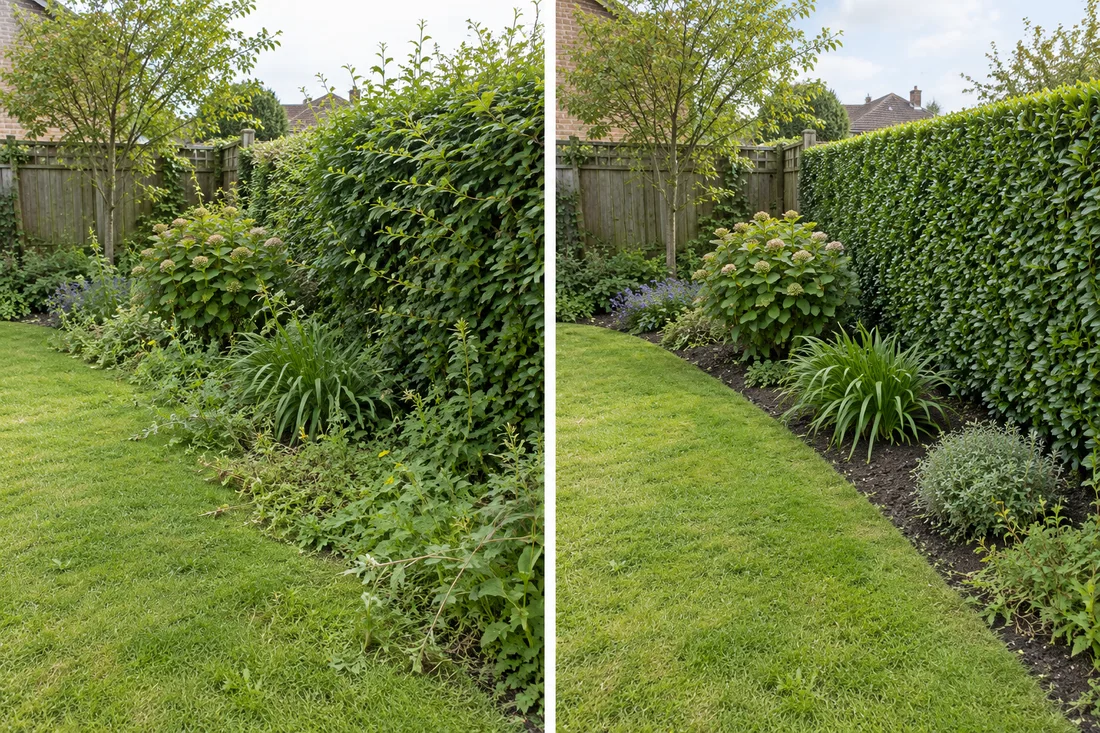
Imagine a garden-maintenance team documenting a border during an ordinary visit. This is a hypothetical example, not a customer case study. The worker takes a starting view from a fixed point and notes that the agreed task is to tidy that border. Work elsewhere in the garden is outside the scope being illustrated.
After the task, the worker returns to the same point, checks the visible boundaries and takes the finished view. The note explains the work completed and flags that the lighting changed during the visit. The office can now assess whether the pair is clear enough to use and whether its caption needs to mention that limitation.
A useful caption might describe the particular border-maintenance task using confirmed facts. It should not claim a full redesign, a guaranteed result for every garden or a measured increase in property value. If the pair is poorly matched, the editor can select a single finished view or leave the material private. Those are reasonable decisions, not failures to produce enough marketing content.
Review privacy and accuracy before choosing a layout
Inspect both full photographs, including their edges and background. People, documents, reflections, addresses and vehicle registrations can be easy to miss when the main subject is an obvious transformation. The business must establish that its intended use is appropriate and authorised. Taking a photograph or receiving an upload does not establish permission to publish it.
Next, review the claim attached to the pair. Does the note match the visible work? Is a limitation important to understanding the result? If the images show only a small part of a job, make that scope clear. Do not use a tidy crop to hide information that would materially change the story, or describe an intermediate stage as a completed outcome.
The forthcoming WorkToSocial office process supports source review and selected preparation; it is not automatic privacy clearance. Ask for clarification, choose a different view or decide against publication when necessary. For any manual privacy treatment, inspect the final file carefully. A reviewer should make a deliberate decision about the actual image that will be used.
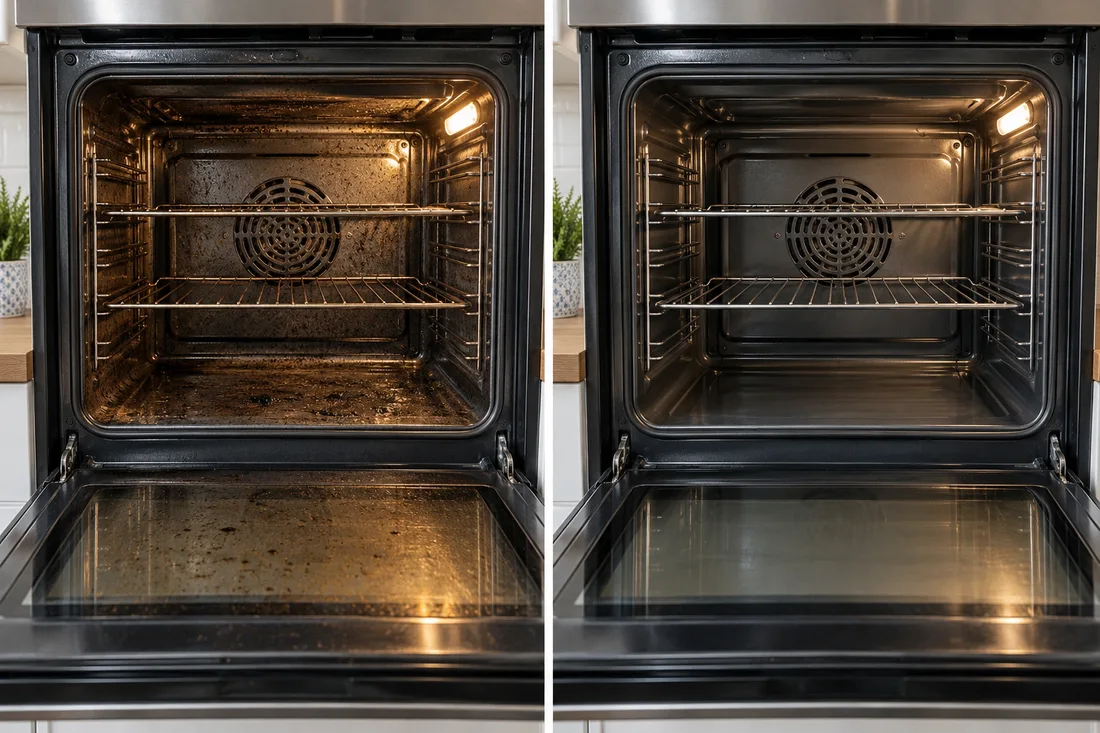
Prepare the pair for the viewer, then check it again
Side-by-side and stacked layouts serve different spaces. Choose a presentation in which someone can understand both views without guessing their order. Label the phases clearly, keep the subject comparable and check that the crop has not changed the apparent area of work. A large logo should not cover the detail that makes the comparison useful.
Read the caption alongside the complete finished preview. Company identity, contact details and the next step should be accurate. Keep descriptions specific to the documented task. A pair of photographs is not a certificate of quality, a technical inspection or a guarantee of future results. It is one piece of context that can help explain work honestly.
Media & Social remains coming soon. Its published direction is to prepare downloadable files for the business's own channel workflow. Automatic social posting and a live publishing calendar are not active features of this media module. Source approval should be followed by a final review of the prepared output before export and any separate publication through an authorised channel.
Start with one repeatable capture brief
Agree a small routine with the team: one useful subject, a repeatable starting position, a clearly identified finished phase and a factual handover note. Try it on suitable work without making photography more important than delivering the service safely. Ask the office which missing details prevented an accurate story, then improve the brief.
Keep original context available and record where selected content is used. A published page or post URL can help the office find the result later, but it does not demonstrate enquiries, bookings or other commercial outcomes. Evaluate those separately with the business's own evidence. Some visits will not yield suitable public material, and the routine should allow that outcome.
To explore the product direction, review the planned WorkToSocial capture-to-export process or ask about Media & Social and early access. Confirm availability before planning adoption; it cannot currently be purchased. The habit you can begin now is straightforward: comparable views, accurate scope and a deliberate review before public use.
Competitor Spy and Duplicate Auditor have their own plans and usage limits. Media & Social is coming soon. Product findings support human review; they do not guarantee rankings or commercial results. Check the linked product pages for current details.