

Identify the field that repeats
A service company opens its audit and finds the same title on several pages. The finding is concrete, but the editing task still needs definition. Which pages are affected? Which field repeats? What does each page offer that would help a visitor choose it? The answer may be a simple template correction, an individual edit or a discussion about why the pages exist.
Start by recording the field named in the finding. An HTML title, a meta description and a visible main heading occupy different places on a page. A publishing system might populate them from a shared value or provide separate controls. Open the affected pages and check which field the report refers to before changing the content.
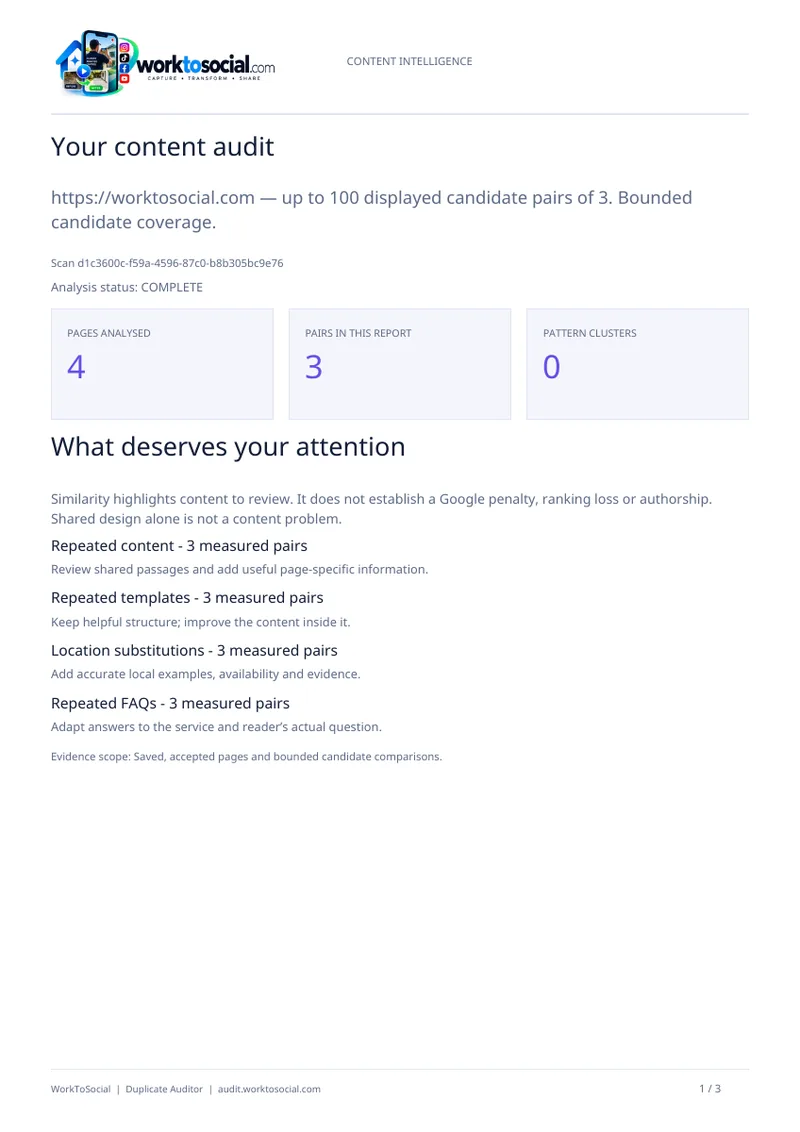
WorkToSocial Duplicate Auditor helps surface repeated titles and descriptions from the available crawl. Treat the row as an address and a piece of evidence to inspect. The Duplicate Auditor overview explains the audit and the coverage available for review.
Check how much of the section was analysed
A cluster of matching values describes the pages included in the comparison. Before deciding the same template affects an entire section, check which URLs were discovered and which supplied usable information. Record any relevant missing pages or retrieval failures. Those gaps can change the size of the job and which teams need to be involved.
Look at the affected URLs together. If they all use the same page type, ask the website maintainer where the field comes from. A default may be repeated across a page family. A copied value can also be stored independently on each page. Finding the source helps you choose between fixing a default and editing individual records. Check the result on a small set before applying a wider change.
For a practical way to document what the evidence covers, see the guide to website audit coverage. Keep the coverage note with the editing request so a colleague can see what still needs inspection.
Describe each page in one sentence
Write down the page's job before drafting new metadata. Identify the visitor, the question they came to answer and the next step the page supports. A patio cleaning page might explain what surfaces the team can assess and how to request a quote. A driveway cleaning page might explain which driveway materials the company handles and what details it needs from the customer.
Read the visible content to confirm those differences. If a sentence about a page depends on information absent from the page, ask whether the page needs a content edit first. An accurate title should describe what the visitor will find after opening the page. A description can summarise a relevant detail or next step that the visible content supports.
Where two pages appear to have the same job, ask the service owner to explain why both exist. The answer could be a genuine difference in audience, coverage or scope. That discussion belongs before an editor spends time writing separate descriptions for pages whose relationship is unclear.
Preserve shared wording that helps visitors
A company name, a standard contact instruction and a consistently named service can appear across several pages for good reasons. Readers benefit from familiar terminology and accurate conditions. Preserve shared wording where it helps the visitor recognise the company or understand a service. Spend the editing time on the part that explains why the specific page matters.
For a family of service pages, a common structure can make the site easier to maintain. Give the template a place for a specific service name and a place for genuinely useful details. Ask the content owner to supply those details. Avoid inserting a place name or an adjective solely to make each value look different in a report.
Repeated main text calls for its own review. Inspect which passages are shared and whether they perform a common function. Our guide to templates and main content explains how to read that evidence alongside the page's purpose.
Make the editing worksheet specific
Use one row per page in a simple worksheet. Record the page URL, the field that repeats, its current value, the page's purpose, the fact that distinguishes it, the proposed wording and the person who can approve it. Add a check column for the live result and a note for decisions that need more evidence. Copy the actual value from the page or verified finding so the editor can recognise it.
Write a title that identifies the service or subject in terms a visitor understands. Then draft a description that adds a useful detail. That might be the type of work covered or the information required to make an enquiry. Ask the service owner to check claims about availability, prices and turnaround before including them.
Give an editor a concrete acceptance check. They should be able to open the live page, confirm the intended value appears in the relevant field and show where the visible copy supports it. That makes the worksheet useful for implementation and review.
Work through a hypothetical service pair
Imagine an exterior maintenance business with separate pages for patio cleaning and driveway cleaning. In this hypothetical example, both pages use the title Exterior Cleaning and share a description inviting customers to contact the company. The audit identifies the repeated fields. The reviewer opens both pages and confirms they serve different enquiries.
The patio page asks customers to describe the paving and nearby steps. The driveway page asks about the surface and vehicle access. The reviewer confirms those details with the colleague who handles quotes. Each page can now use a clear title naming its service and a description that helps a customer prepare the relevant information. Both titles can retain the company name if it fits the site's established pattern.
The maintainer finds the generic description in a shared default. They check that individual pages can supply their own descriptions and test the two edits. The worksheet records the new values and the live URLs. The change gives each visitor a clearer indication of the service they will find.

Verify the live fields and plan the next review
After publishing, open the updated pages and verify the actual title and description delivered by the site. Compare them with the approved worksheet. Check the visible headings and the enquiry route as well. If the old value still appears, ask the maintainer to inspect the template, the page settings and any caching that might affect the served result.
If you run a later scan, check its coverage before comparing finding counts. A page missing from the later crawl can make a finding disappear from the report even when the original value is still present. Keep the affected URLs in your worksheet so you can verify the edit directly.
Begin with one small group of pages whose purpose you can confirm. Record the repeated fields, agree which differences matter to customers and publish a small set of accurate edits. Once the website delivers the intended values, use the same worksheet for the next group.
Competitor Spy and Duplicate Auditor have their own plans and usage limits. Media & Social is coming soon. Product findings support human review; they do not guarantee rankings or commercial results. Check the linked product pages for current details.